

Using Flags
Forensic Email Intelligence (FEI) provides comprehensive flagging capabilities to classify documents during examination. Flags can also be used to identify subsets of data for subsequent operations such as exports.
Creating Flags
Section titled “Creating Flags”You can define the flags for your case from FEI’s Manage Flags page. To create a new flag, click the + New Flag hyperlink.
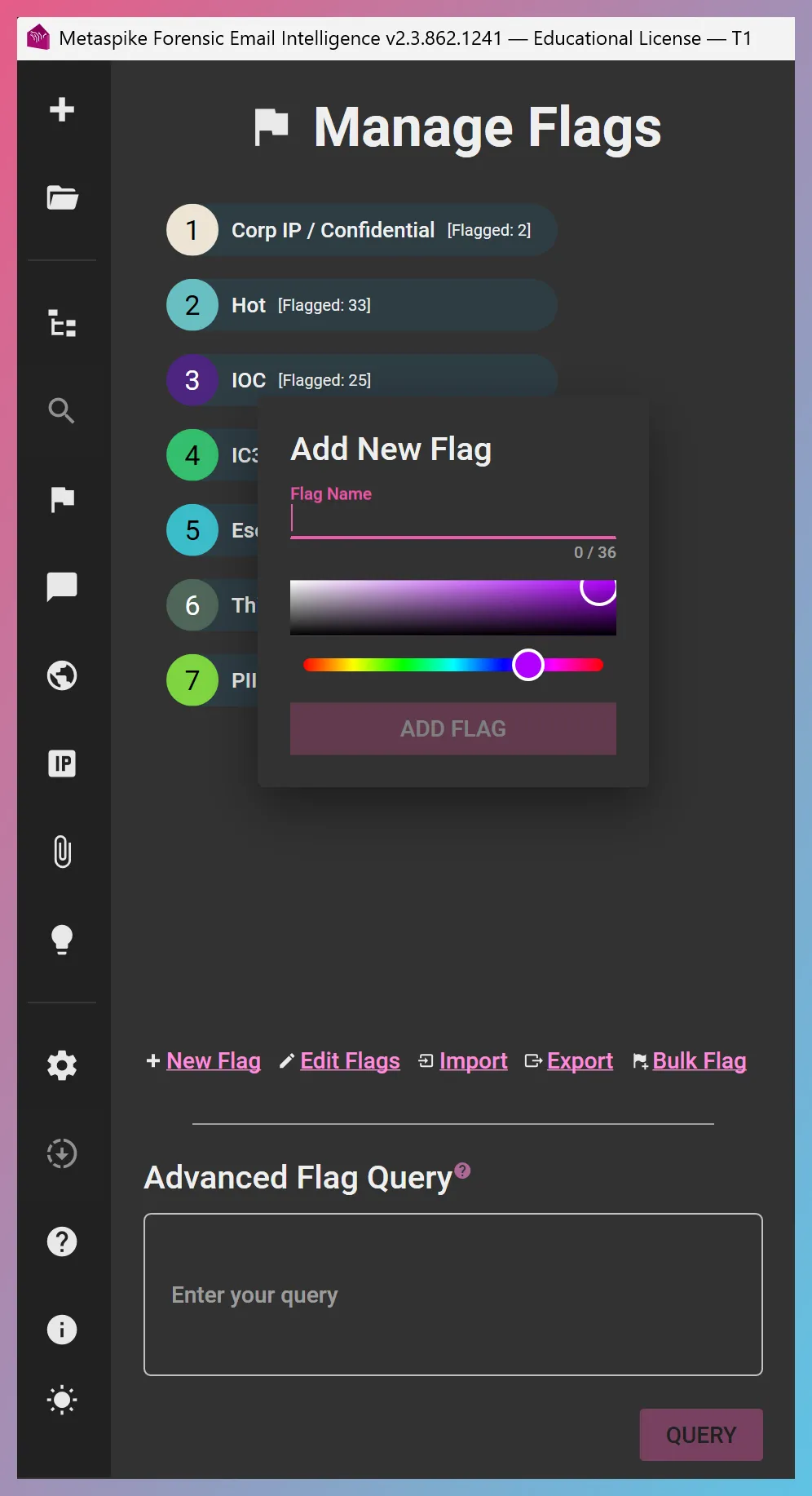
Each flag has its ID and the number of documents to which it was applied in the flag list view. For example, according to the screenshot above, the Hot flag has an ID of 2 and was applied to 33 items.
If you would like to change a flag’s name or color, you can use the Edit Flags hyperlink to do so.
Applying Flags
Section titled “Applying Flags”Items can be flagged using the following mechanisms:
- Select multiple items on the Evidence Grid, click
Control + T ControlT or right click -> Flag Selected, then click on the flag or press the keyboard button such as2 2 for Flag ID: 2; or - Execute a search, click
Control + T ControlT , then click on the flag or press the keyboard button such as2 2 for Flag ID: 2 to flag search results (see here); or - Open the Flags View in FEI Viewer and toggle the flag.
Querying Flags
Section titled “Querying Flags”You can query a flag to review a list of items to which the flag was applied as follows:
- Open the Manage Flags view and click on one of the flags; or
- Click on a flag bubble within the Flags column on the Evidence Grid; or
- Execute an Advanced Flag Query (see below).
Advanced Flag Queries
Section titled “Advanced Flag Queries”You can use the Advanced Flag Query panel to combine one or more flags using Boolean operators and/or parentheses. Each flag is referenced by its identifier, which is the number shown inside the colored circle next to the flag.
Example 1: (1 OR 2) AND 5
Example 2: 4 NOT 2
Import and Export Flag List
Section titled “Import and Export Flag List”You can use the Import and Export hyperlinks on the Manage Flags View to transfer your list of flags between FEI projects.
Bulk Flagging Items
Section titled “Bulk Flagging Items”You can use the Bulk Flag hyperlink on the Manage Flags View to apply flags to items in bulk. This feature can be particularly useful if you would like to identify certain items in FEI based on outside input. For example, you may have a list of Message-IDs from an Unified Audit Log export to review in FEI or perhaps you identified a subset of email items during an examination in another tool that need to be examined in more detail using FEI.
The bulk flag mechanism accepts an input CSV file with ItemId and FlagId columns and applies each flag represented by its FlagId to the item represented by the corresponding ItemId.
An example input CSV may look as follows:
| ItemId | FlagId |
|---|---|
| 123 | 4 |
| 76129 | 5 |
| 18384 | 2 |
| 18384 | 3 |
| 18384 | 5 |
| 36172 | 1 |