

Batch Creating Acquisition Projects
Forensic Email Collector (FEC) allows you to load a list of target email addresses to batch-create acquisition projects to automate forensic preservation from a large number of target users.
You can accomplish this as follows:
-
Start a new acquisition
-
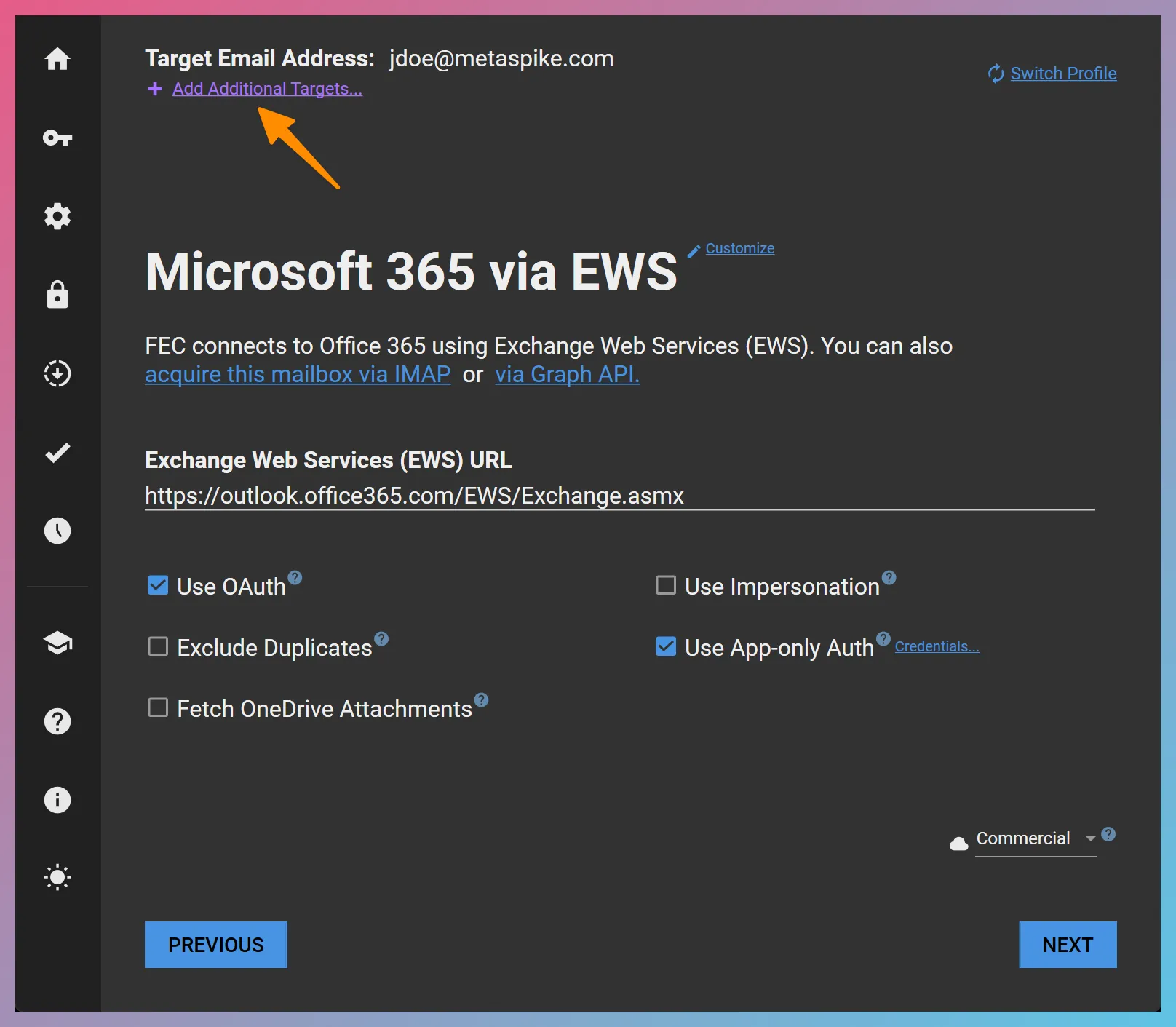
On the connection settings page, click the Add Additional Targets… link
-
Select the file that contains the list of target email addresses (see below for the format of this file)
-
On the folder selection page, after configuring your search query, click the
Create Additional Projects Create Additional Projects button.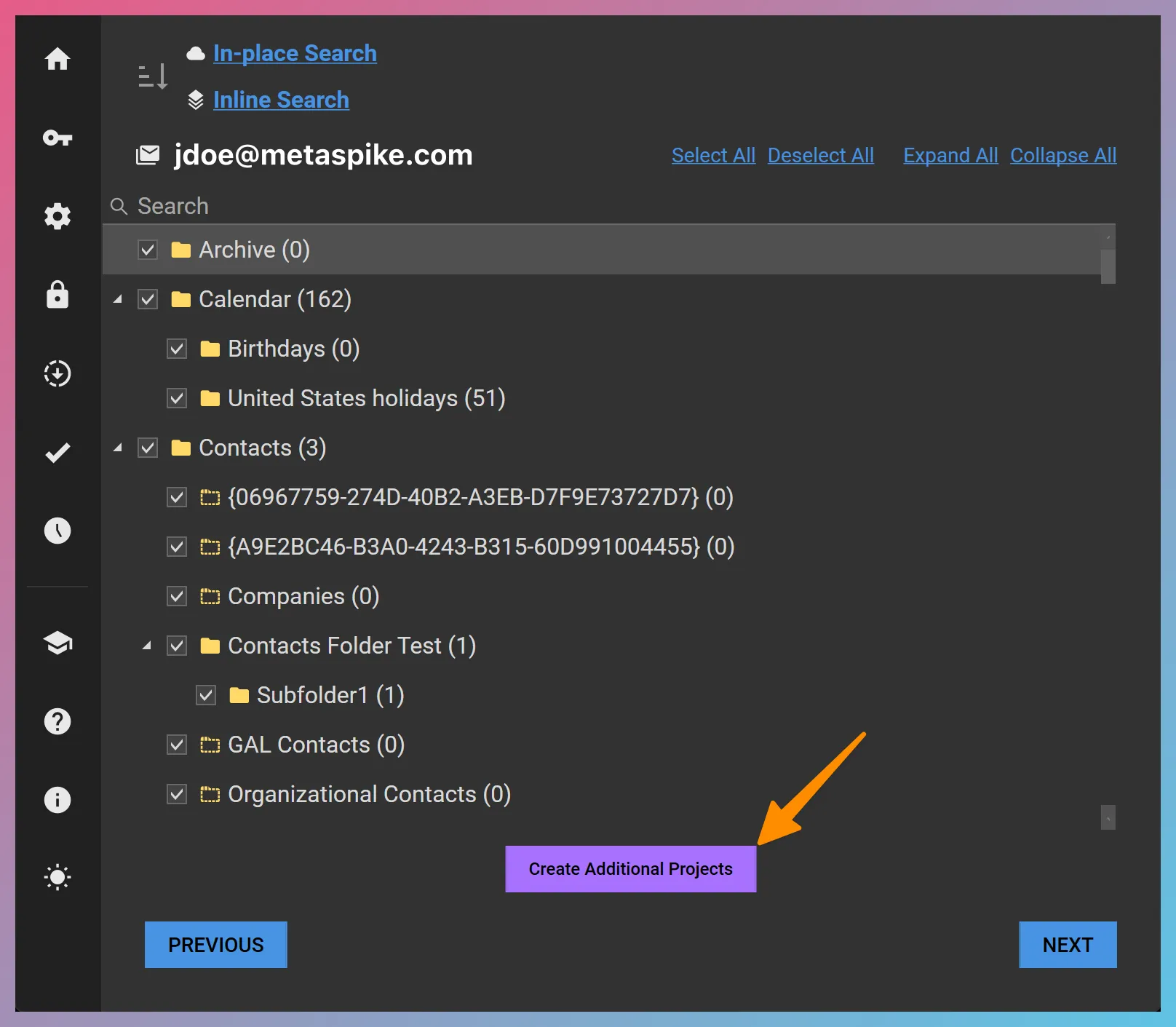
-
FEC will create a separate acquisition project for each additional target email address in your output directory.
Format of The Target Email Address List
Section titled “Format of The Target Email Address List”1. When Using Delegation, Impersonation, or App-only Authentication
Section titled “1. When Using Delegation, Impersonation, or App-only Authentication”If you are using App-only Authentication, delegation, or impersonation available for Google Workspace (formerly called G Suite), Exchange, and M365, you do not have to provide separate credentials for each target account. Your target email address list should simply be a text file containing a list of email addresses, with the string “TargetEmail” on the first row. For example:
TargetEmail2. When Authenticating with Each Mailbox Individually
Section titled “2. When Authenticating with Each Mailbox Individually”If you are authenticating with each mailbox individually, you will need to provide the username and password for each account in your target email address list. The columns on your list should be separated by tabs, and the header names for the username and password fields should be “Username” and “Password”. You can accomplish this easily by creating the list in Excel, and then copying it to a text file. For example:
| TargetEmail | Username | Password |
|---|---|---|
| [email protected] | [email protected] | Ss9ntRmtwApu |
| [email protected] | [email protected] | U7GwXQThd7Du |
| [email protected] | [email protected] | q3NyCRzzM74g |
| [email protected] | [email protected] | FtDbSTpyzD95 |
| [email protected] | [email protected] | NqcE6jzMy85w |
| [email protected] | [email protected] | zLS2YkqjuG8D |
| [email protected] | [email protected] | DxVxcTQjzznZ |
| [email protected] | [email protected] | nnRDsqxxQvwC |
| [email protected] | [email protected] | F9HfdWN5N6XV |
| [email protected] | [email protected] | R7ybUmNtqUEq |
| [email protected] | [email protected] | pm9FMGNQTCE3 |
| [email protected] | [email protected] | mZa8zmGHH8Kg |
| [email protected] | [email protected] | SQXX3fVFSDEz |
| [email protected] | [email protected] | 2nLexTGPUs2a |
Mailbox Enumeration with Google Workspace
Section titled “Mailbox Enumeration with Google Workspace”When using domain-wide delegation of authority with Google Workspace, you can have FEC enumerate the mailboxes and help you add them as additional targets. You can trigger this feature by clicking on the Explore Mailboxes… hyperlink as in the screenshot below:
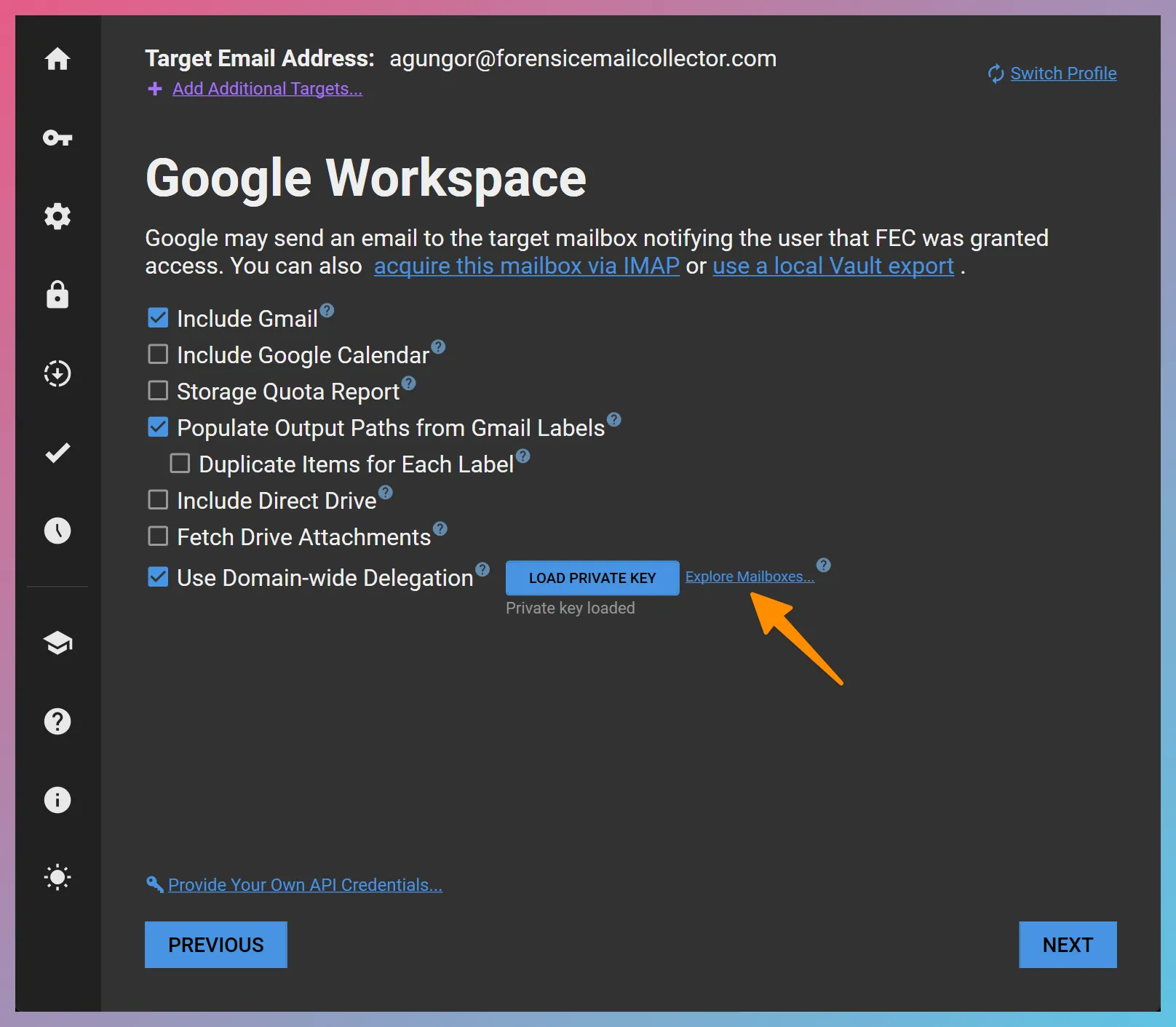
The following requirements have to be met in order to use the Explore Mailboxes feature:
- The Service Account you are using should be authorized for the
admin.directory.user.readonlyscope as outlined in our domain-wide delegation documentation. - The target email address you used to start the acquisition (i.e., first page in FEC) should be an administrator in the target Google Workspace organization.
Performing In-place Searches on All Acquisitions
Section titled “Performing In-place Searches on All Acquisitions”You can have all targets searched using the same In-place Search criteria by specifying it in your initial acquisition session. Since project settings carry over to the additional targets, all target acquisitions will be searched using the same criteria.
Decrypting S/MIME in All Acquisitions
Section titled “Decrypting S/MIME in All Acquisitions”If you choose the Decrypt S/MIME option while setting up your initial acquisition project, all additional acquisition projects will also have this setting applied. You can add all the certificates needed for decryption ahead of time, or use the computer’s certificate store, so that FEC can decrypt S/MIME-encrypted items across the board.
Launching the Additional Acquisition Sessions
Section titled “Launching the Additional Acquisition Sessions”You can start the additional acquisition sessions by double-clicking on them and clicking the