

In-place Search for Google APIs
When preserving a Gmail or Google Workspace (formerly called G Suite) account using Google APIs via Forensic Email Collector (FEC), it is possible to perform pre-acquisition (i.e., In-place) searches to narrow down the data set. You can perform In-Place searches in Gmail, Google Calendar, and Google Drive by clicking the In-place Search link as shown below:
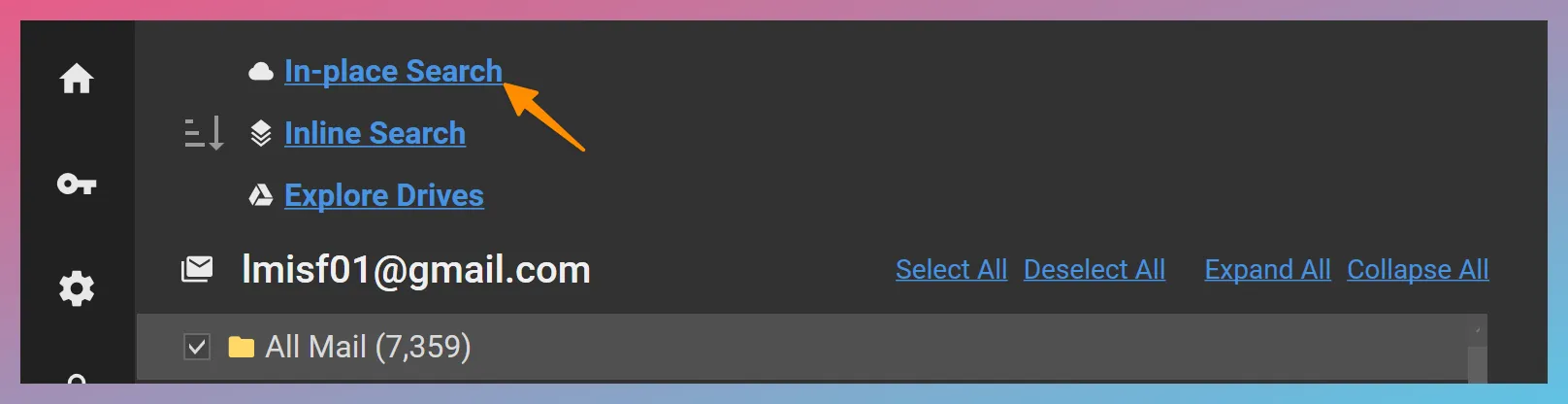
FEC allows you to execute your search query on the server and preview the search results. Because FEC uses Gmail, Google Calendar, and Drive APIs, the search syntax and functionality are identical to those of Gmail, Google Calendar, and Drive search. In other words, the accuracy of the search results is dependent on the capabilities of Gmail, Google Calendar, and Google Drive search. If you prefer to use a search workflow that operates independently of the provider, you can consider using Inline Search instead of, or in addition to, In-place Search.
FEC’s In-place Search user interface for Google APIs has three tabs:
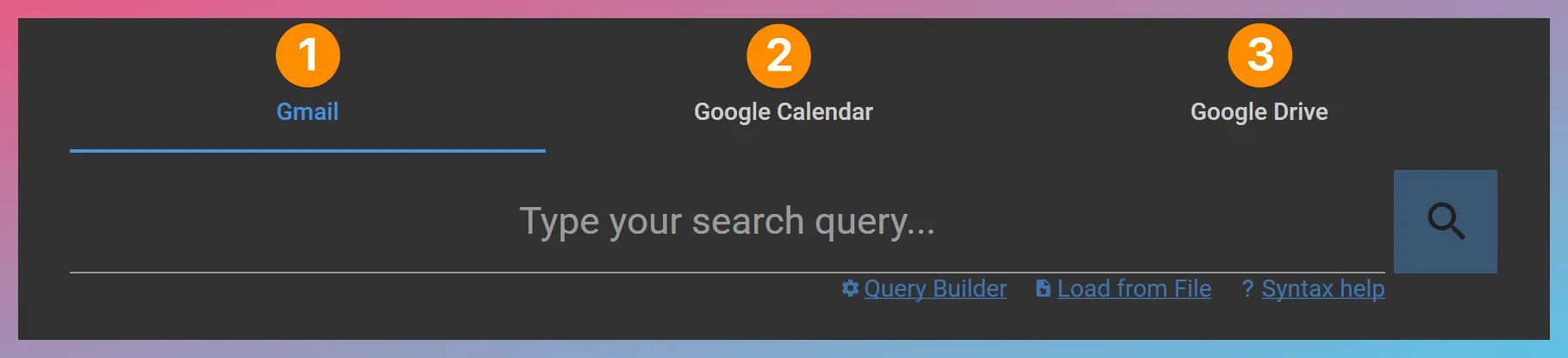
The visibility of each tab depends on the folder selection made in the folder tree before launching In-place Search. For example, if Gmail and Google Calendar items were selected for acquisition, then tabs 1 and 2 would be visible.
1. Gmail
Section titled “1. Gmail”What You Can Search For
Section titled “What You Can Search For”Pre-acquisition filtering can be a convenient way to filter messages using a long list of criteria. You can refer to Google’s documentation on search operators you can use with Gmail for a comprehensive list of search operators and syntax.
Here are a few examples to get you started:
- Messages with a certain label — Example:
label:business - Messages from a specific sender — Example:
from:[email protected] - Messages sent after a certain date — Example:
after:2017/01/01 - Messages with a specific ID — Example:
rfc822msgid:[email protected] - Messages that are important or starred — Example:
is:important OR is:starred(note that the Boolean operator OR is capitalized) - Messages with specific words near each other — Example:
business AROUND 3 meeting(matches items where “business” and “meeting” are within 3 words of each other) - Messages that are unread and have a pdf attachment — Example:
is:unread filename:pdf(multiple search terms are combined with an AND by default) - Messages containing an exact phrase — Example:
"business meeting tomorrow" - Messages containing all specified terms; not necessarily as a phrase — Example:
(lunch dinner) - Messages in any folder, including Spam and Trash — Example:
in:anywhere - Messages that do not have a label — Example:
has:nouserlabels
Note: When referencing labels with spaces in their names, Gmail expects that the spaces be replaced with dashes. For example, you can search for all emails labeled “House Purchase” by using the query in:house-purchase.
Boolean AND, OR, NOT Operators
Section titled “Boolean AND, OR, NOT Operators”When you use multiple search terms, Gmail search combines them with an invisible AND operator. In other words, the query in:inbox is:starred looks for items that are both in the Inbox, AND are starred.
If you would like to perform an OR search instead (e.g., when searching for messages that have a list of labels), you can include an explicit OR operator (capitalized) in your query. For example, searching for in:purchases OR in:expenses would cause Gmail to look for messages that have either the “Purchases” or “Expense” labels.
Example Searches
Example 1—Items that have the “Finance” label with dates after August 1, 2017 where the phrase “wall street” appears within 5 words of the word “mortgage”:
"wall street" AROUND 5 mortgage after:2017/8/1 in:Finance
Example 2—Items that have either the “Apple” or the “Samsung” label with dates between July 5, 2016 and September 3, 2017 that contain the domains “verizon.com” or “att.com”:
(verizon.com OR att.com) (in:Apple OR in:Samsung) after:2016/7/5 before:2017/9/3
Example 3—Items from “[email protected]” that contain the word “recipe” in their subjects that are newer than 3 months:
from:[email protected] subject:recipe newer_than:3m
Example 4—An item with a specific message ID:
rfc822msgid:faa8eb4ef3a111cef92c4f3d4.2b2e377f4b.20180727131804.f6cb5c2de6.514dd497@mail117.wdc01.mcdlv.net
Example 5—Items that do not have the “Work Product” label where the word “Apple” is found within 4 words of the word “Sonos” and “Apple” appears first (i.e., the proximity search is order sensitive):
"Apple AROUND 4 Sonos" NOT in:work-product
2. Google Calendar
Section titled “2. Google Calendar”While Google Calendar API allows end users to perform searches, its search capabilities are different than those of Gmail.
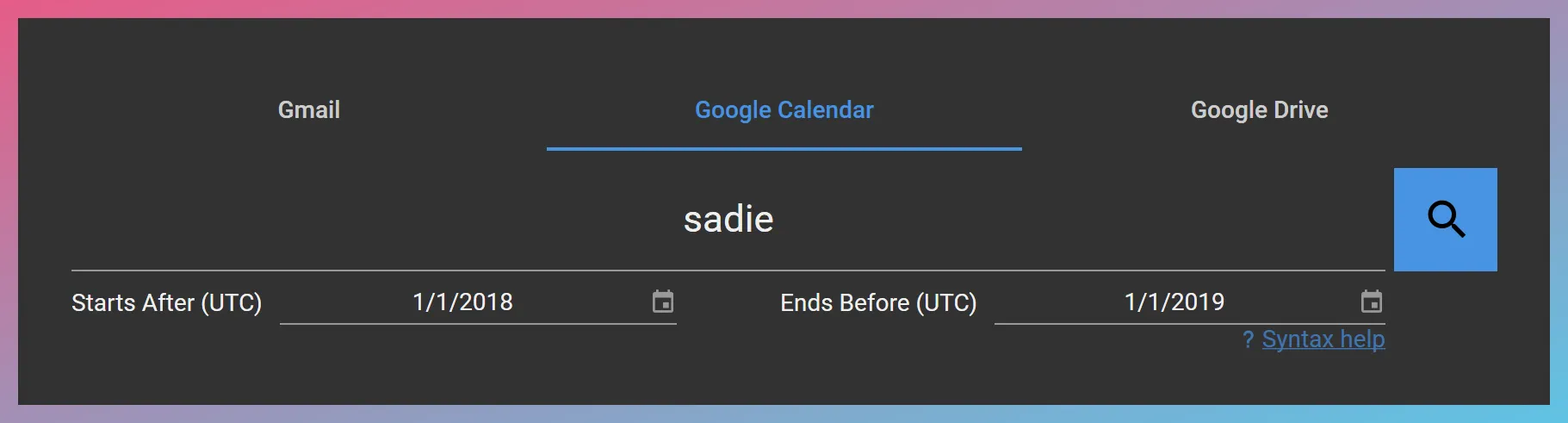
The search bar at the top allows you to enter free text search terms to find events that match these terms in any field, except for extended properties. It is important that you do not enter search operators such as “before:”, “after:”, etc. here as you would in Gmail.
The two date pickers below allow you to filter events by their start and end times in Coordinated Universal Time (UTC). You could populate none, one, or both of these date parameters depending on your requirements.
3. Google Drive
Section titled “3. Google Drive”The following two Google articles provide key information about searching Drive:
Drive Search Query Terms and Operators
Boolean Searches in Drive
Drive API supports the and, or, and not Boolean operators—similar to Gmail API. However, one key difference between Gmail API and Drive API is that in Gmail API In-place Searches, the and Boolean operator can be omitted. When omitted, the API will implicitly AND the terms. On the other hand, the and Boolean operator is not optional in Drive API, and omitting it will result in a syntax error.
Example Searches
Section titled “Example Searches”name = 'contract dispute'
⬆️ Note that the query text is surrounded by single quotes.
fullText contains 'Tenant\'s Rights'
⬆️ Note that:
- The single quote character within the search term is escaped using the backslash character.
- The fullText term includes the name, description, indexableText properties, and text in the file’s content or metadata.
- When used on the fullText term, the contains operator seeks to match the entire string token.
mimeType != 'application/vnd.google-apps.folder'
⬆️ The above query finds items that are not of a folder type.
sharedWithMe and modifiedTime > '2022-04-12T12:00:00'
⬆️ The above query finds items that were shared with the authorized user and modified after a given timestamp in UTC.
'[email protected]' in owners
⬆️ Items whose owners contain the user [email protected].
Saving the Search Query
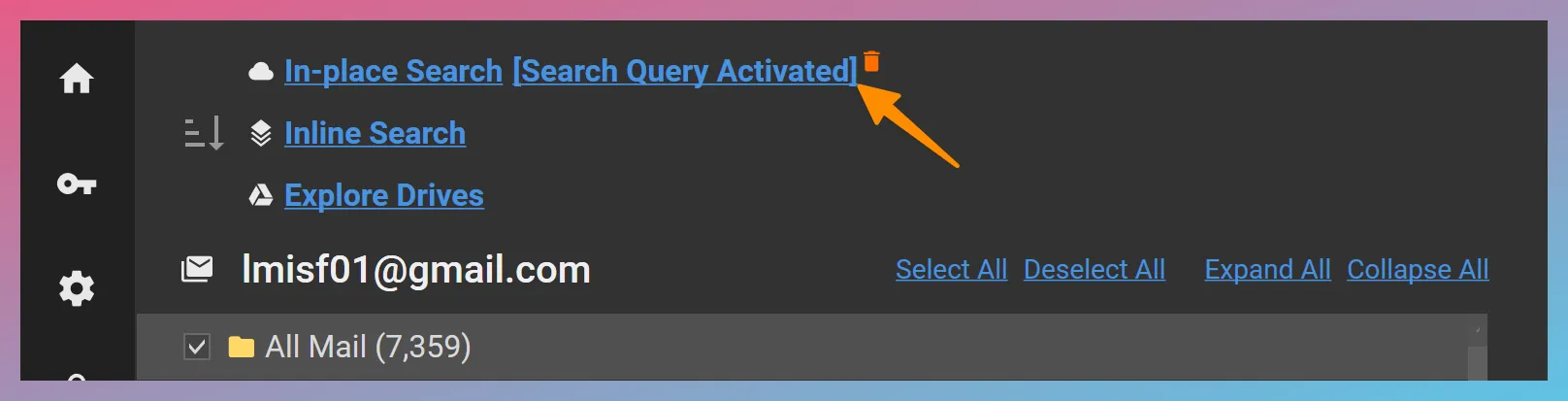
Section titled “Saving the Search Query”Once you have finalized your search query, you can save it by using the SAVE button. This will close the In-place Search window and activate your query. You will see a notice as in the screenshot below.
Clearing the Search Query
Section titled “Clearing the Search Query”If you would like to clear the search query, you can click on the small 🗑️ symbol next to the “Search Query Activated” text as shown in the figure above.