

Using The Unified Query Builder
Forensic Email Collector (FEC) is able to perform In-place Searches on multiple provider types such as Gmail / Google Workspace, Exchange / M365 via Exchange Web Services (EWS), Microsoft Graph API, and IMAP servers. Because these searches run directly on the server, the search syntax and user interface for each In-place Search type is different.
The Unified Query Builder provides a uniform user interface and query construction experience across all searchable provider types. It also helps create concise and efficient search queries without having to know the search syntax of each provider in great detail.
Launching The Unified Query Builder
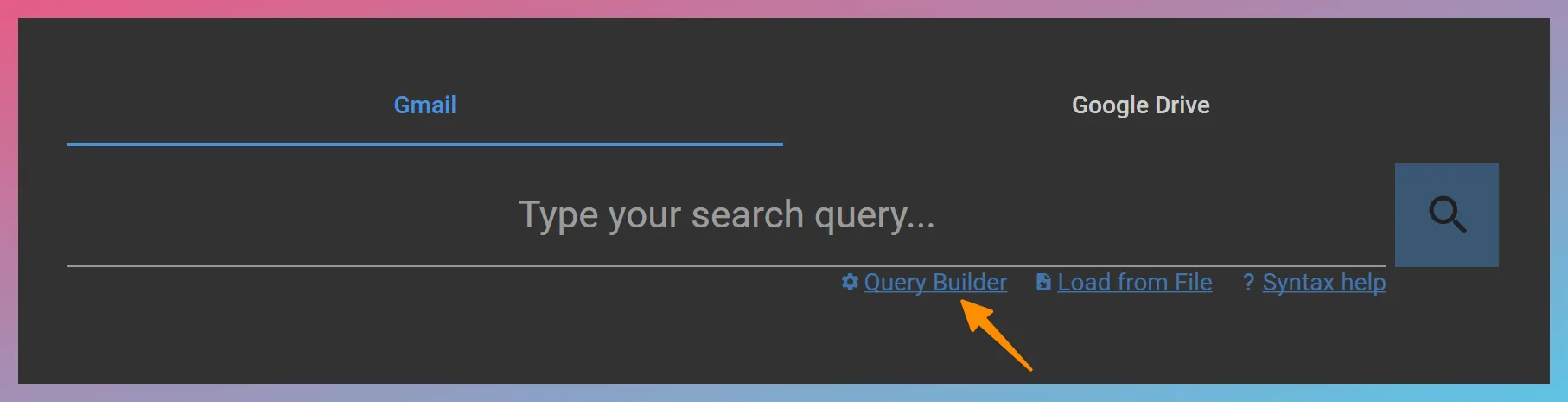
Section titled “Launching The Unified Query Builder”The Unified Query Builder can be launched by entering the In-place Search interface for the provider, and then clicking on the Query Builder hyperlink as in the screenshot below:
Using The Unified Query Builder
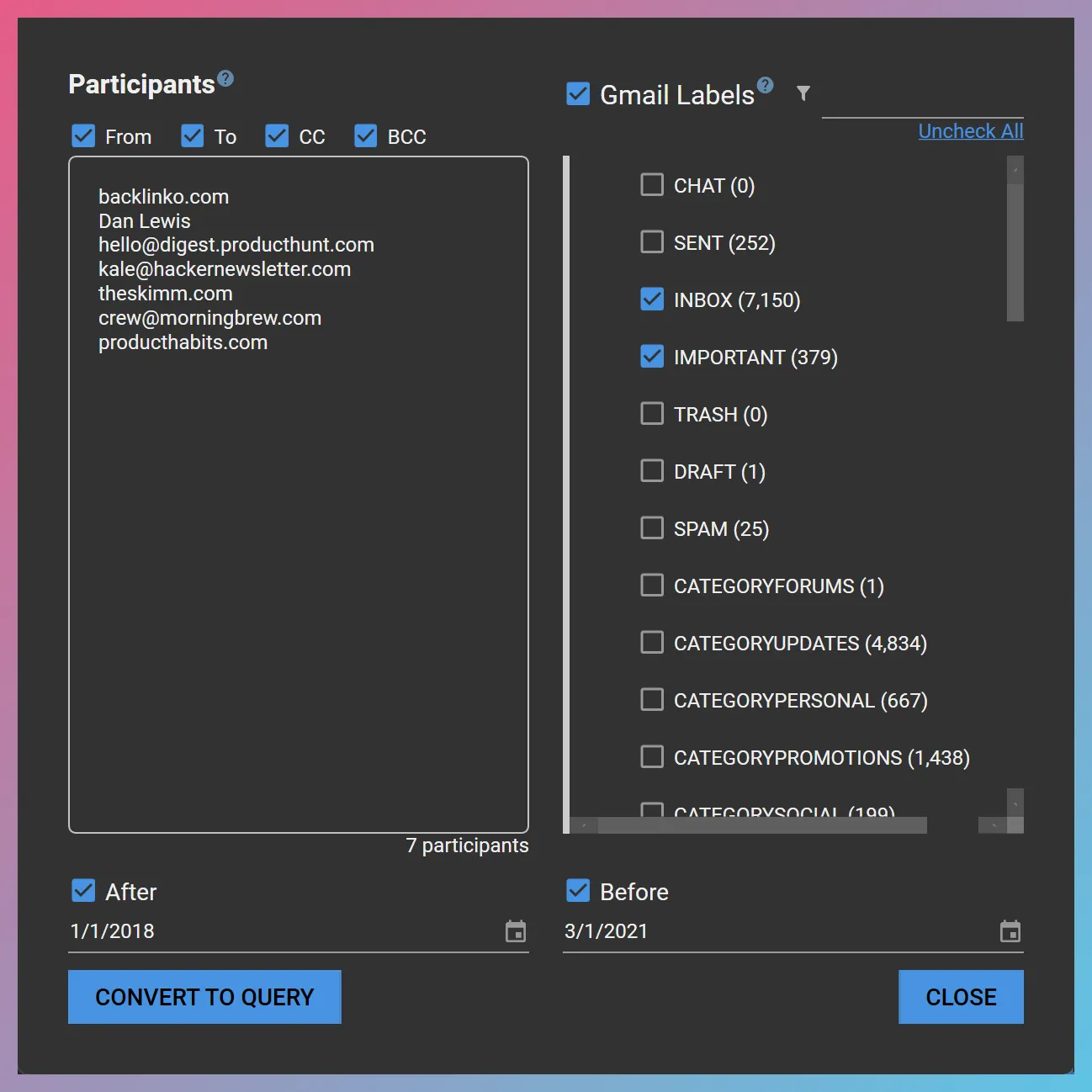
Section titled “Using The Unified Query Builder”The user interface of the Unified Query Builder looks as follows:
Participants
Section titled “Participants”The From, To, CC, BCC checkboxes and the Participants textbox form the Participants section of the Unified Query Builder. You can enter a list of participants (emails, names, domains, etc.) one participant per line, and choose the metadata fields (i.e., From, To, CC, BCC) that should be searched by checking and unchecking the corresponding checkbox. It is not necessary to put the participant strings in quotes—the Unified Query Builder would handle that as needed.
Date Restriction
Section titled “Date Restriction”You can use the “After” and “Before” date selectors to specify a date restriction for the acquisition. Enabling only one of the selectors would cause a one-sided date restriction. For example, after January 15, 2016.
Gmail Labels (Gmail API Acquisitions Only)
Section titled “Gmail Labels (Gmail API Acquisitions Only)”The Gmail Labels panel lists the Gmail labels found in the mailbox. You can choose one or more of the labels to limit the acquisition to those specific labels. You can use the filtering textbox above the label tree to narrow the tree down to labels that contain the search string. This makes it easier to locate a label when a mailbox contains a large number of labels.
If you would like to acquire the entire mailbox regardless of the Gmail labels, keep the “Gmail Labels” checkbox unchecked (i.e., do not select any labels for filtering). If you check the “Gmail Labels” checkbox and check all of the listed labels, this would be equivalent to searching the entire mailbox except you would be introducing redundant label search terms. Unified Query Builder detects this condition and ignores the label restriction if the “Gmail Labels” checkbox is checked and all the listed labels are also checked.
How Are The Criteria Combined?
Section titled “How Are The Criteria Combined?”- The search categories in the Unified Query Builder are combined using the AND Boolean operator as below:
<participant criteria> AND <date criteria> AND <label criteria>
So, if you specify participants, a date range, and certain Gmail labels, responsive messages would have to have the specified participants, and be within the specified date range, and contain the selected Gmail labels.
- The criteria within the Participants and Gmail label categories are combined using the OR Boolean operator. For example, if you specify “[email protected]” and “[email protected]” as participants and 1/1/2015 to 1/1/2017 as the date range, the responsive messages would have to have the participants “[email protected]” or “[email protected]”, and be within the time period 1/1/2015 to 1/1/2017.
Converting to an In-Place Search Query
Section titled “Converting to an In-Place Search Query”Once you have finalized entering the search criteria, you can click the