

Direct Google Drive, OneDrive, and SharePoint Acquisitions
In addition to acquiring Google Drive, OneDrive, and SharePoint modern attachments, Forensic Email Collector (FEC) supports directly acquiring files from these providers. We call this functionality Direct Drive Acquisitions.
Enabling Direct Drive Acquisitions
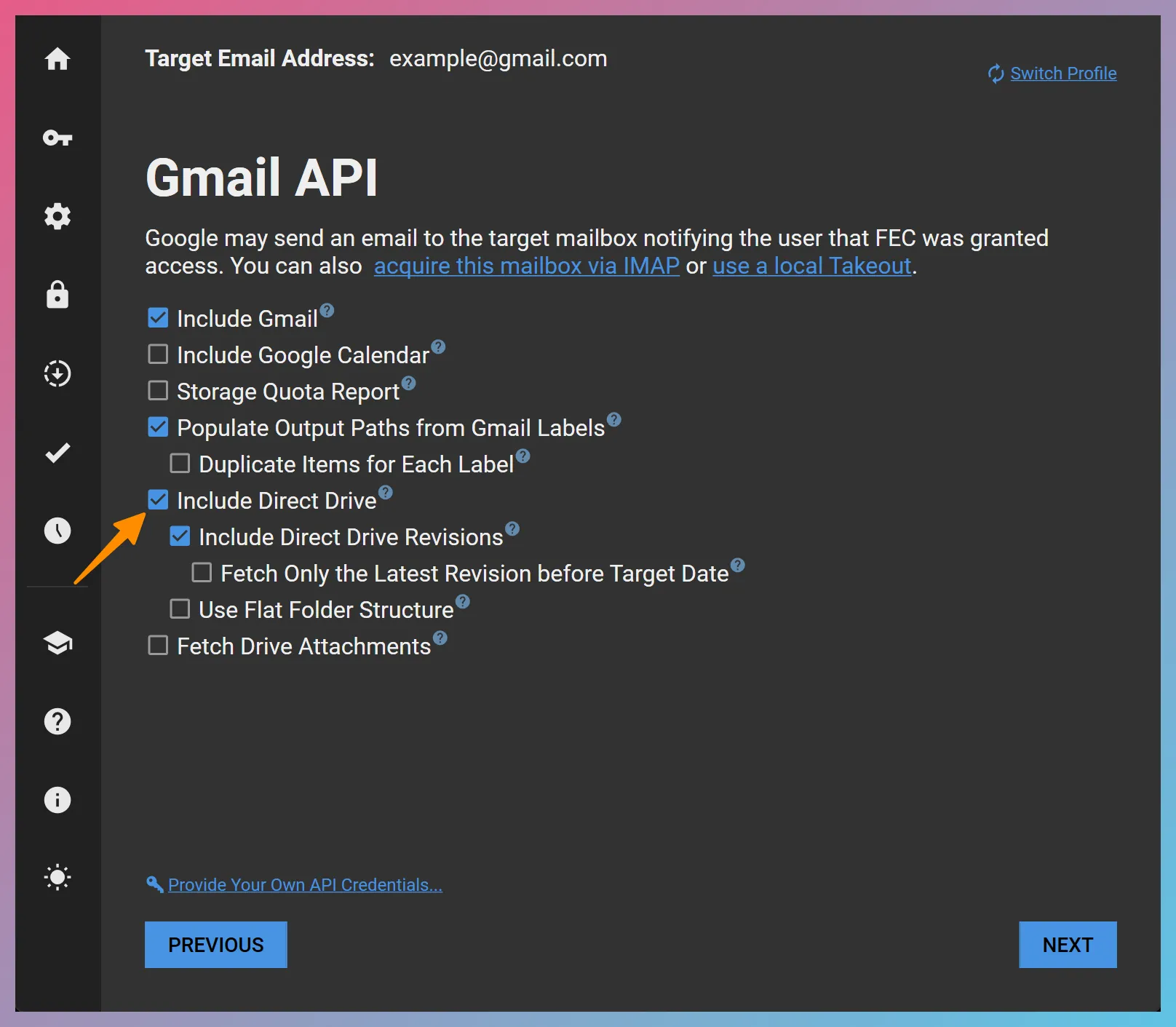
Section titled “Enabling Direct Drive Acquisitions”Direct Drive Acquisition is available in Google API and Microsoft Graph API acquisitions. You can activate it using the Include Direct Drive option as in the screenshot below:
Direct Drive Acquisition Options
Section titled “Direct Drive Acquisition Options”Include Direct Drive Revisions
Section titled “Include Direct Drive Revisions”When this option is selected, FEC will also request revision information for each Drive file. If the item has revisions, they will be acquired along with the parent item.
Fetch Only the Latest Revision before Target Date
Section titled “Fetch Only the Latest Revision before Target Date”This option works in conjunction with Differential Drive Acquisitions in Inclusion Mode, which supports supplying a list of Drive items to be acquired along with a Target Date. When this option is enabled, FEC attempts to locate and acquire only the latest revision before the supplied target date.
Include SharePoint (Graph API only)
Section titled “Include SharePoint (Graph API only)”When targeting Microsoft accounts, this option controls if the acquisition should be limited to OneDrive only or if SharePoint Sites should also be included.
IMPORTANT SharePoint should not be included for personal Microsoft accounts—it is only applicable to M365 accounts.
Use Flat Folder Structure (Google Drive API only)
Section titled “Use Flat Folder Structure (Google Drive API only)”By default, Direct Drive output reflects the folder structure of the acquired files. If this option is selected, files are output into a single folder instead, and their names reflect their Service IDs.
Using Drive Explorer
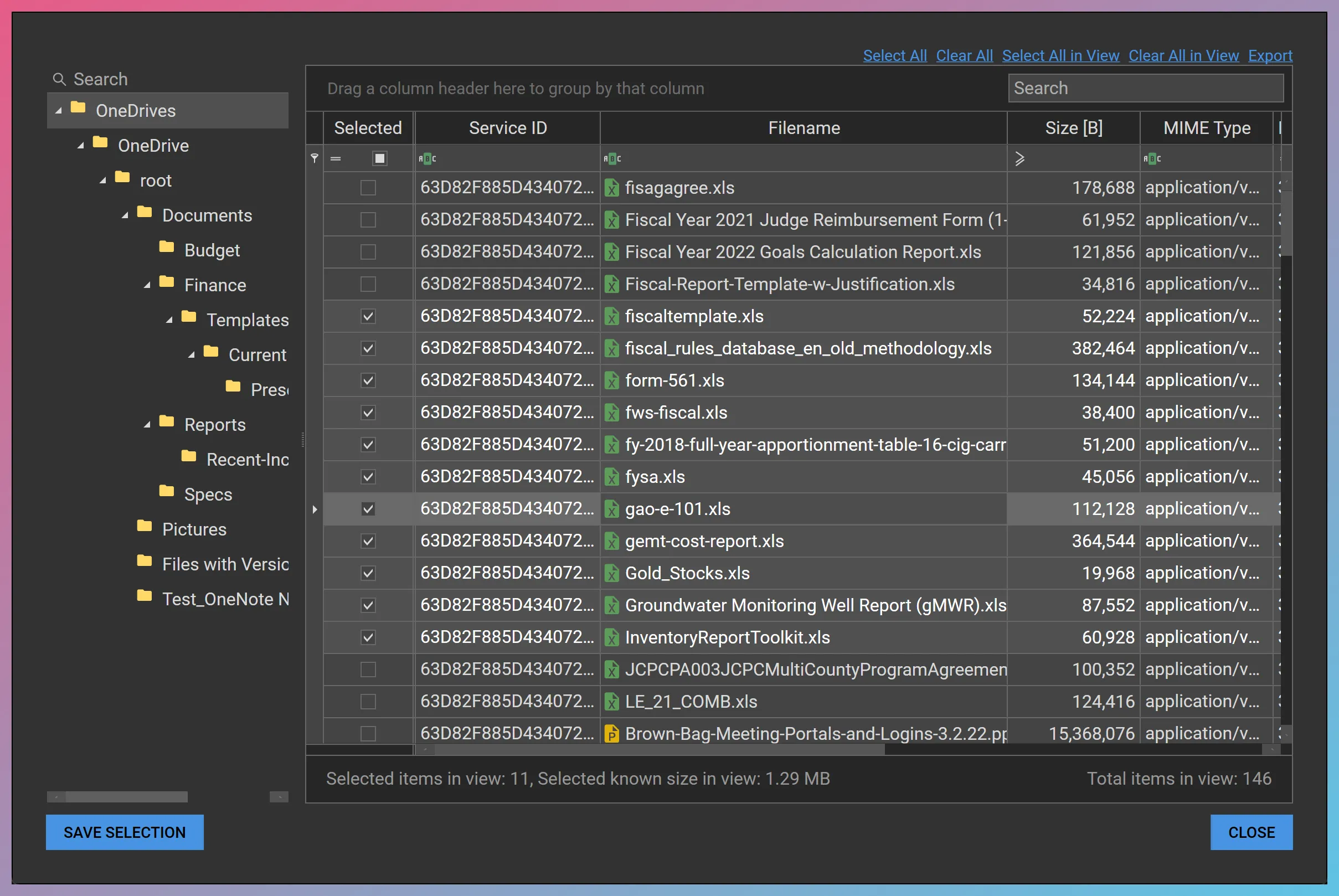
Section titled “Using Drive Explorer”Drive Explorer ↗ 🎥 is a powerful tool that allows you to review the contents of one or more Google Drives, OneDrives, or SharePoint sites, generate and export metadata reports, filter the items, and cherry-pick them for acquisition.
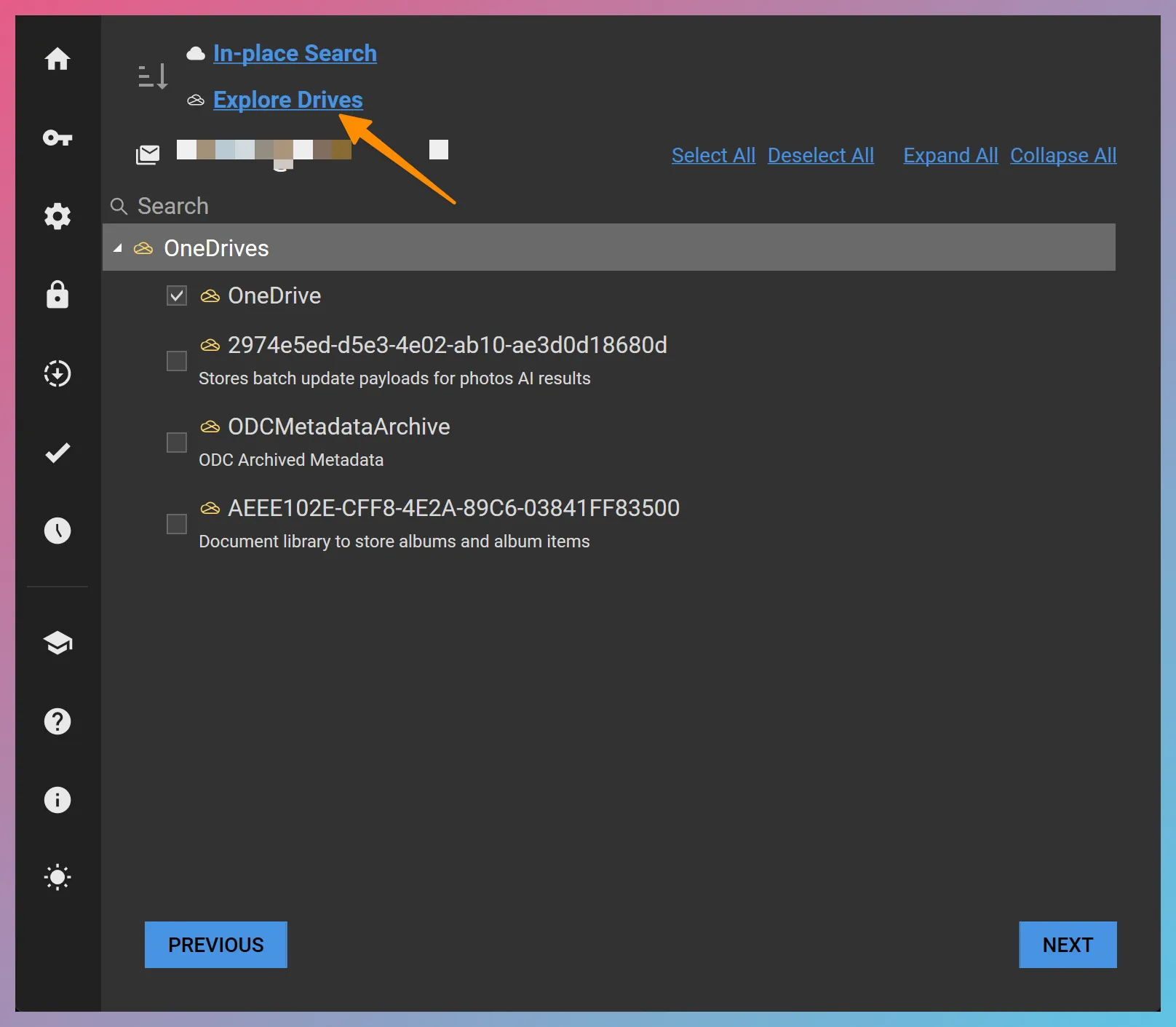
You can activate Drive Explorer by selecting the Drives of interest and clicking the Explore Drives hyperlink as in the screenshot below:
The Drive Explorer user interface looks as follows:
Things You Can Do in Drive Explorer
Section titled “Things You Can Do in Drive Explorer”-
You can use the search textbox at the top of the folder tree to narrow it down. You can then right click on a folder and choose
Explore from hereto narrow the grid down to that folder. -
You can use the Select / Clear hyperlinks at the top of the page to select / deselect items in the current view or on the entire grid.
-
The
Exporthyperlink allows exporting a metadata listing in Excel format. -
You can use the filter, sort, and grouping features of the grid to further filter the items.
-
You can right-click on the grid to select / deselect a list of chosen items.
-
Finally, you can use the
SAVE SELECTION SAVE SELECTION button to save the selected items for acquisition.