

Differential Acquisitions
Forensic Email Collector (FEC) supports Differential Acquisitions where the current acquisition can skip messages that were previously acquired in other acquisitions of the same target mailbox, or can be limited to items that are on a supplied list of identifiers.
Differential acquisitions can be activated as shown in the screenshot below:
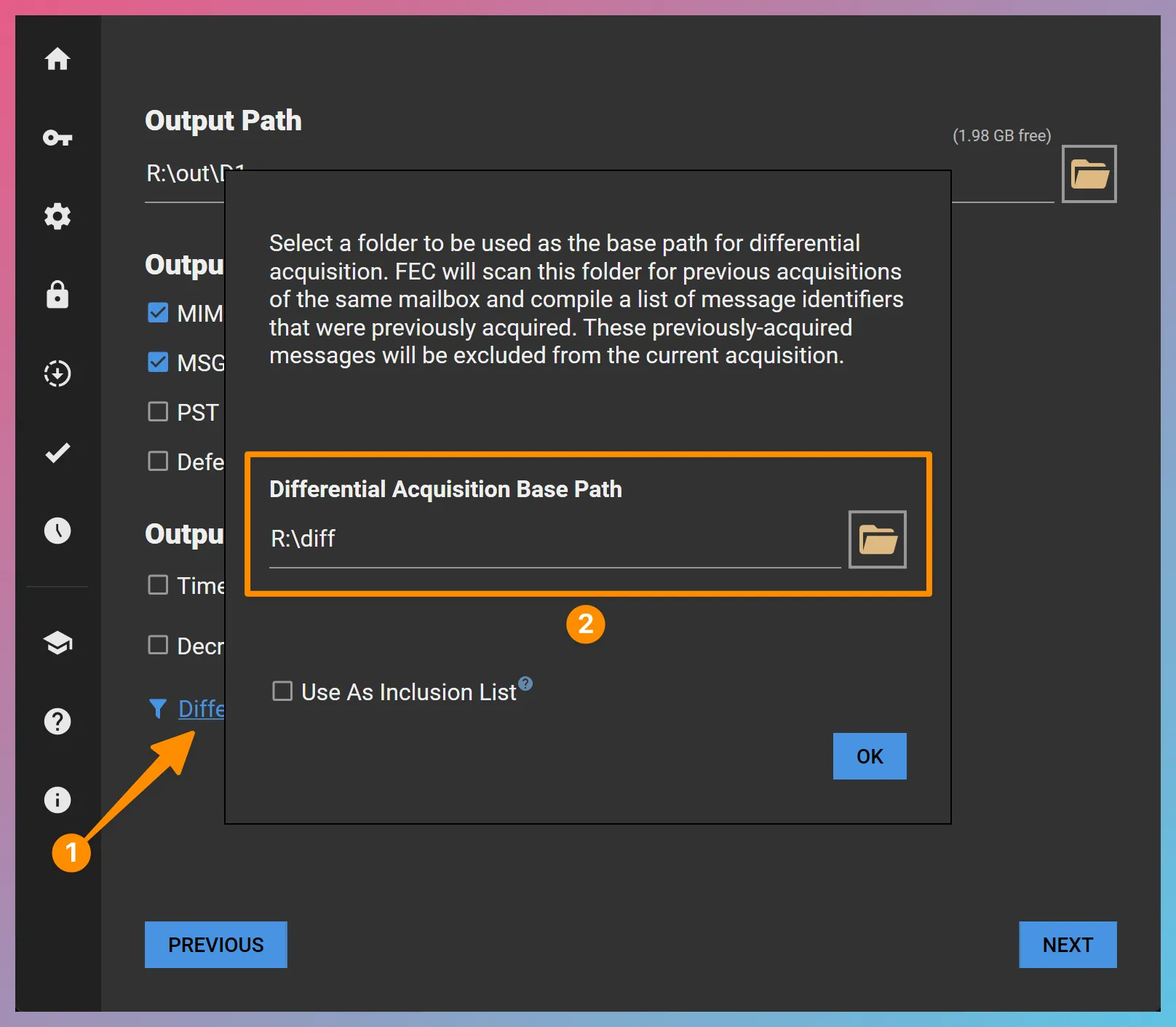
Differential Identifier Sources
Section titled “Differential Identifier Sources”FEC’s differential acquisition workflow supports two types of differential item identifier sources:
1. FEC Projects
Section titled “1. FEC Projects”FEC will scan the specified Differential Acquisition Base Path, including any subfolders, and locate any FEC Projects where the same target mailbox as that of the current acquisition was targeted. The identifiers of any successfully-acquired items in these previous acquisitions will be used to exclude those items from the current acquisition.
2. Input Lists
Section titled “2. Input Lists”FEC will scan the specified Differential Acquisition Base Path, including any subfolders, and locate any input lists named as <target>_DIFF.tsv, or <target>_Drive_DIFF.tsv. For example, if the target mailbox is [email protected], the corresponding differential input list would be named [email protected]_DIFF.tsv.
The input list should be a tab-delimited text file and should contain the Service ID column as found in FEC’s Downloaded Items Log. For IMAP acquisitions, the input list should also contain the Folder column from FEC’s Downloaded Items Log. The presence of additional columns is allowed. Therefore, it is possible to use a renamed version of FEC’s Downloaded Items Log (in TSV format), or a subset of it, as your input list.
The ability to use an input list instead of a full FEC project allows the following scenarios:
-
Using a list of identifiers from an external acquisition as the basis for a differential acquisition in FEC.
-
Excluding only a subset of a previous FEC acquisition from the current acquisition.
Differential Acquisition Reporting
Section titled “Differential Acquisition Reporting”When differential acquisition is enabled, FEC provides additional information in two areas:
-
Additional statistics are provided in the Acquisition Summary section of the Acquisition Log about how many differential IDs are imported and how many of them overlap with the current acquisition.
-
An additional log file named Diff_Excluded_Items is output inside the Logs folder. This file contains a list of items excluded due to differential acquisition and the corresponding differential identifier source (i.e., FEC project or input list).
Differential Batch Acquisitions
Section titled “Differential Batch Acquisitions”You can combine differential acquisitions with FEC’s batch acquisition workflow. The Differential Acquisition Base Path you specify in the main project would be inherited by all the additional projects that are automatically created. However, when launched, each individual project would scan for differential message identifiers relevant for the target mailbox of that project only.
Inclusion Mode
Section titled “Inclusion Mode”Instead of excluding the items found within the differential identifier sources, FEC can limit the acquisition to those items. To trigger this behavior, select the Use as Inclusion List option as in the screenshot below:
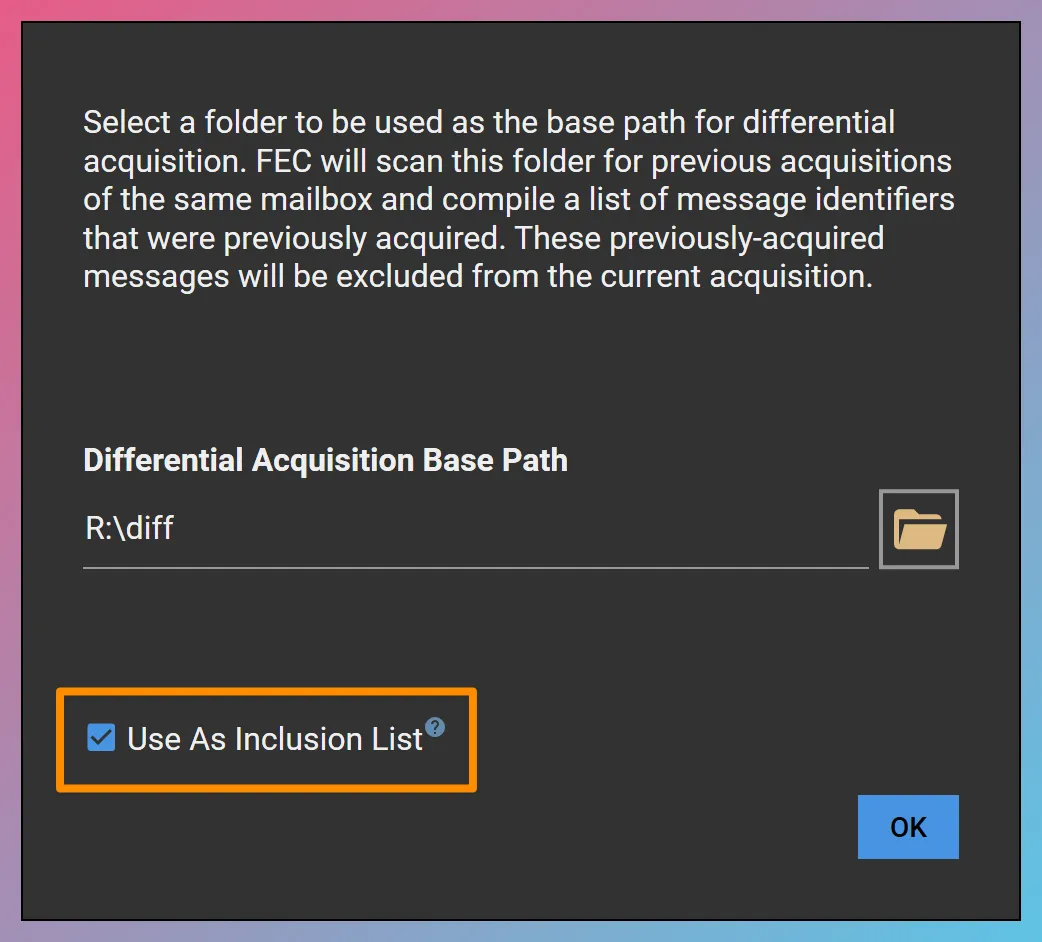
For example, if the differential identifier sources found under the Differential Acquisition Base Path consisted of the Service IDs 1234 and 1235, choosing the Use As Inclusion List option would limit the acquisition to only the two items with the Service IDs 1234 and 1235.
Direct Drive Differential Acquisitions
Section titled “Direct Drive Differential Acquisitions”When setting up a Direct Drive Differential Acquisition, you can use an input list named as <target>_Drive_DIFF.tsv (e.g., [email protected]_Drive_DIFF.tsv).
The input list should be a tab-delimited text file and must contain the Service ID column which reflects the unique identifier of each Drive item used by Google Drive API or Microsoft Graph API.
If you would like to use the Fetch Only the Latest Revision before Target Date option, you can also supply a target date for each Drive item in a column named Target Date.
The supplied target date values can be in the following formats:
2009-06-15 13:45:30Z -> Example timestamp in UTC2009-06-15 06:45:30-0700 -> Example timestamp in UTC-7When a target date is supplied and the Fetch Only the Latest Revision before Target Date option is enabled, FEC would acquire the latest revision dated before the supplied target date.