

Using Domain-wide Delegation with Google Workspace
Forensic Email Collector (FEC) allows you to acquire data from multiple end-users in a Google Workspace (formerly called G Suite) organization using a service account. Using domain-wide delegation of authority, you do not have to track down each end-user and authenticate into their mailbox individually.
In order to use domain-wide delegation with Google Workspace, you need to do the following:
-
PART I - Create a service account and its credentials in Google API Console. At the end of this step, you will have a JSON file containing the private key of your service account. You will also know the Unique ID of your service account.
-
PART II - Delegate domain-wide authority to the above service account in the Google Admin console of the target organization.
IMPORTANT This part requires a Super Admin account. You will likely need the assistance of the IT representative of the target Google Workspace organization.
Here is how you can complete the two steps above:
PART I - Create A Service Account and Its Credentials in Google API Console
Section titled “PART I - Create A Service Account and Its Credentials in Google API Console”-
Visit Google Cloud Console here: Google Cloud Console ↗
-
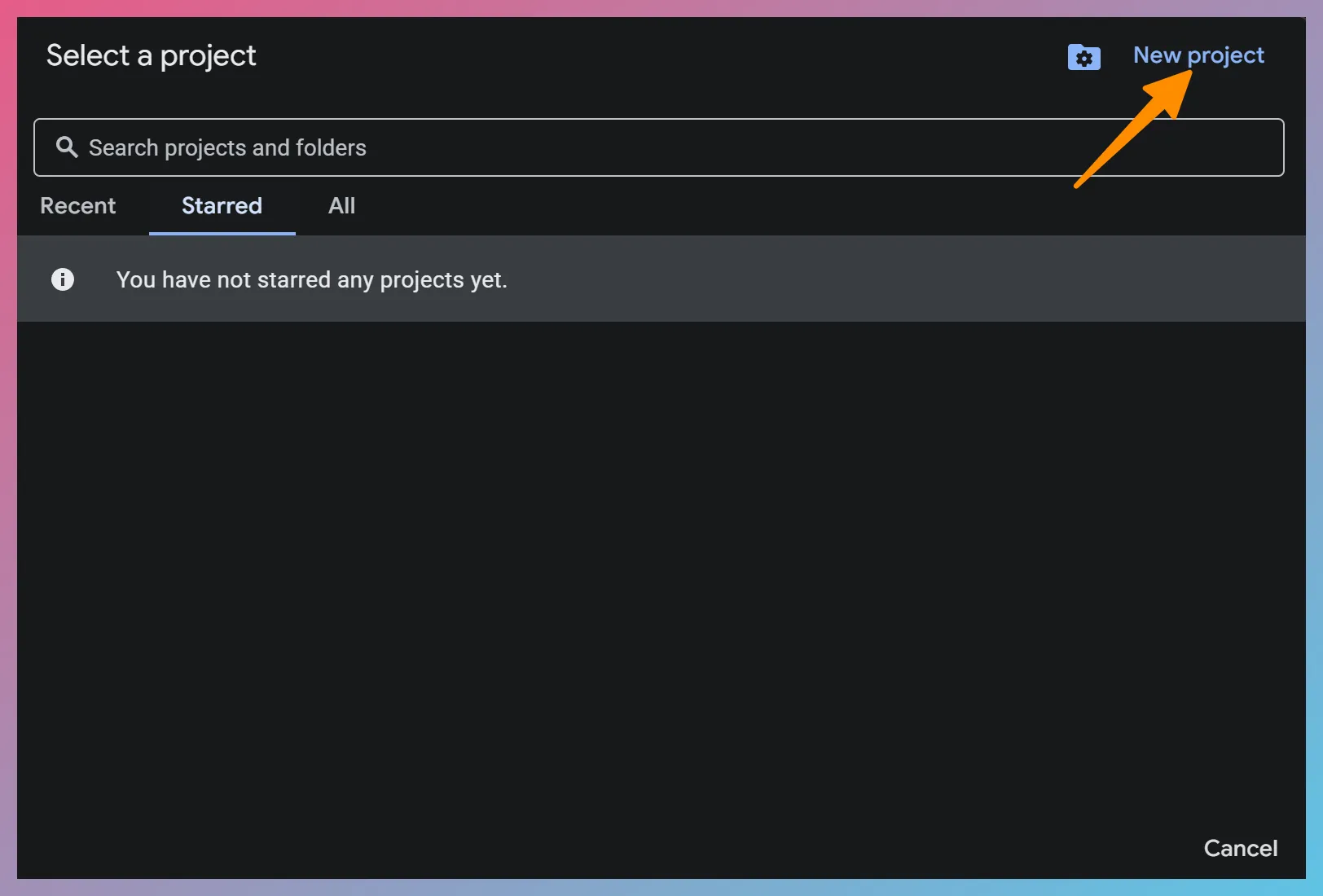
Click on the Select a project dropdown on the top of the page and click on the New Project button on the window that opens.
-
Give your project a name and create it. Our sample project is called “FEC-Delegation”. No need to specify a Parent resource.
-
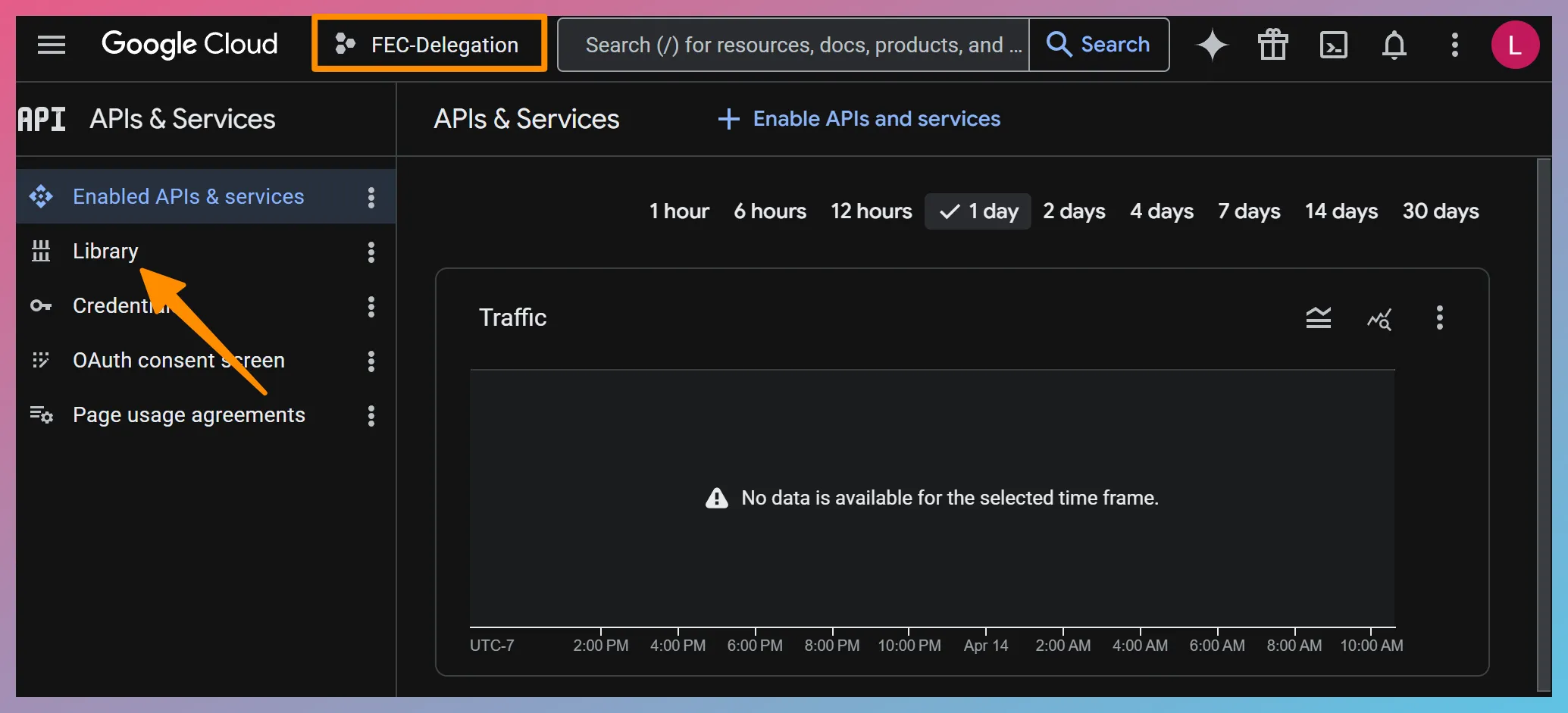
Select the newly-created project from the Select a project dropdown on the top of the page.
-
Click on the Library menu item on the left side of the page.
-
From the API Library, add the Gmail API, Google Calendar API, Google Drive API, and Admin SDK API to your project by searching for them and clicking their ENABLE button. FEC will use these APIs for the acquisition.
-
Visit the Service Accounts page here: https://console.developers.google.com/iam-admin/serviceaccounts
-
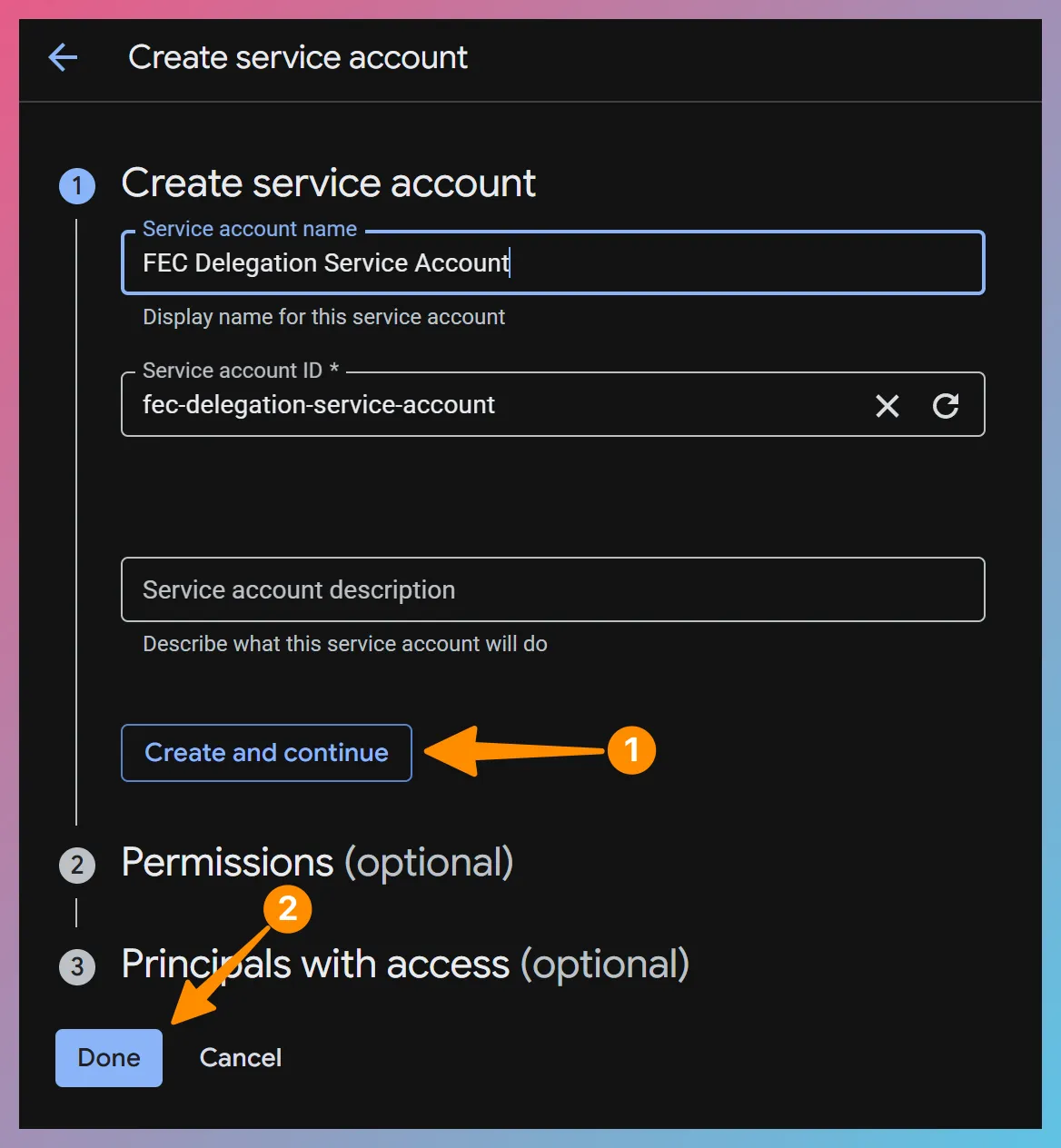
Click on the + Create service account button on the top menu and create a new service account. You can name it as you wish, such as “FEC Delegation Service Account”.
-
Click
Create and continue Create and continue and thenDone Done . No need to fill out the optional details. -
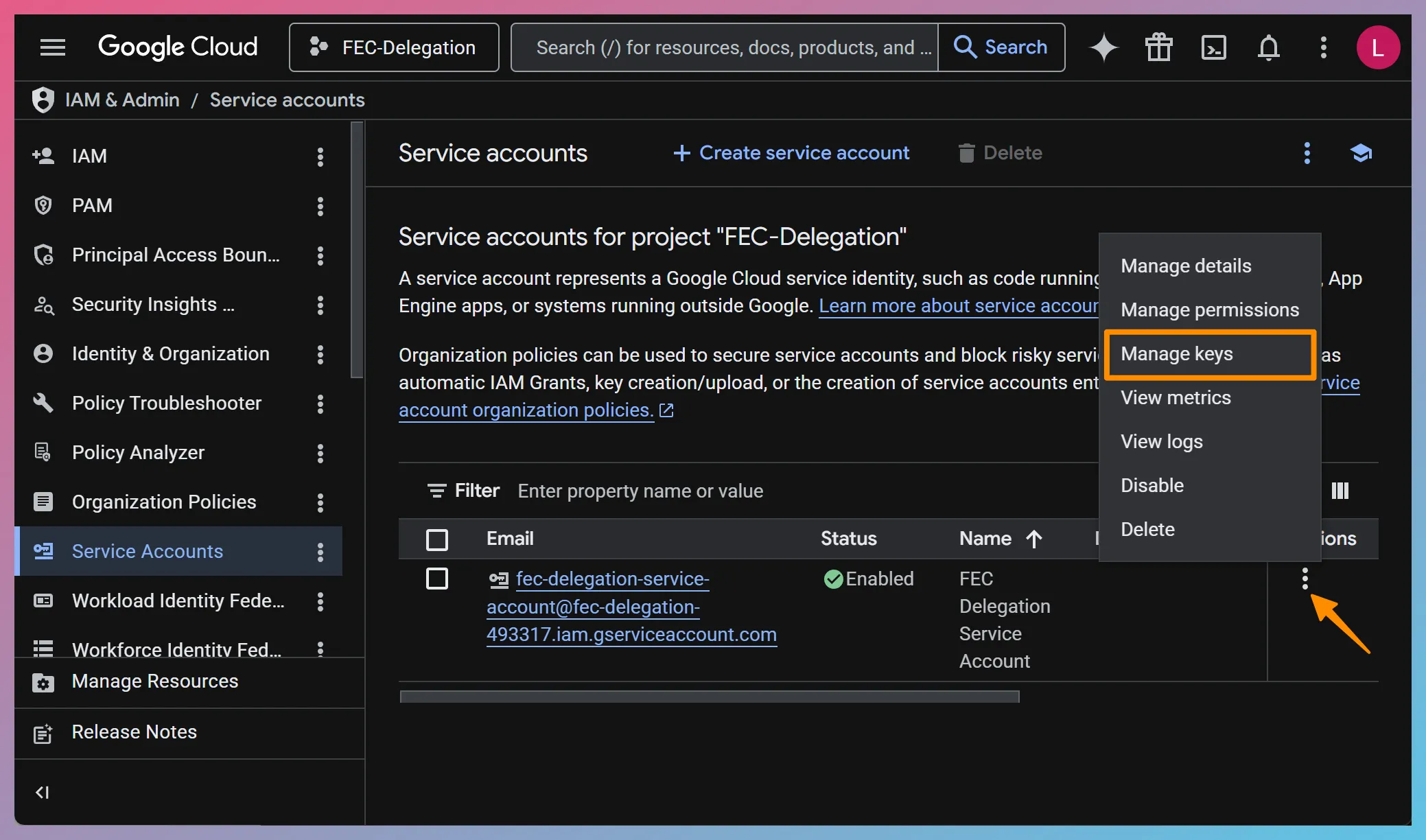
Click the action menu of the newly-created service account and choose the Manage keys menu item.
-
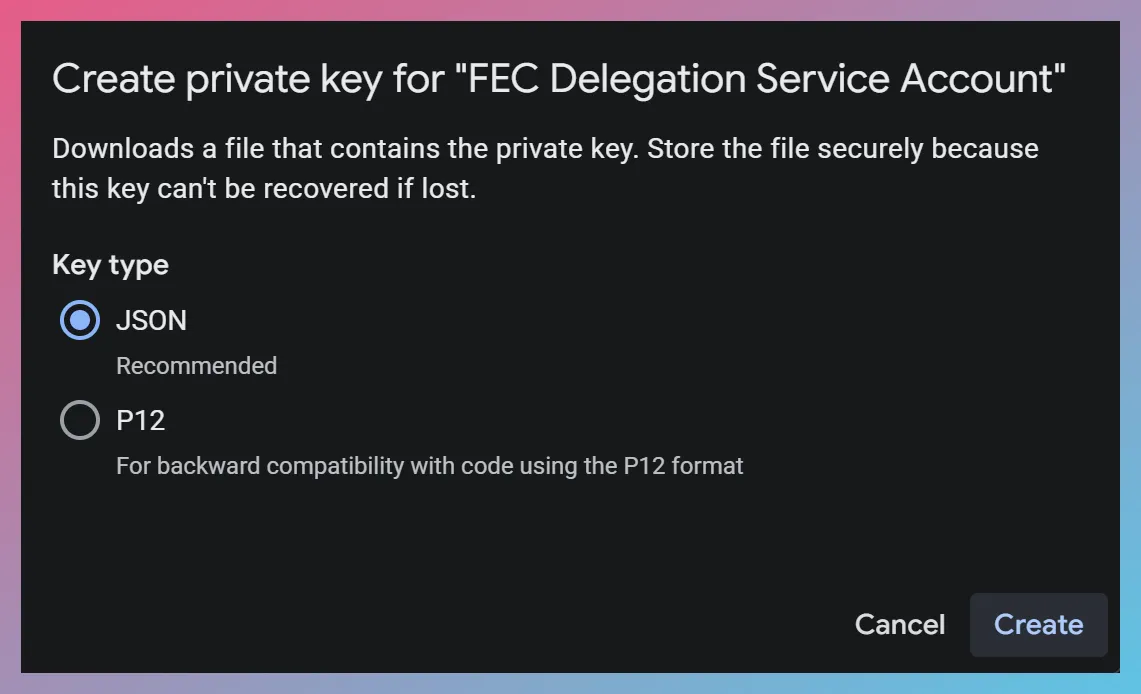
Click Add key > Create new key > JSON > Create. This will cause a new JSON key to be created and downloaded. Save the key to your computer.
-
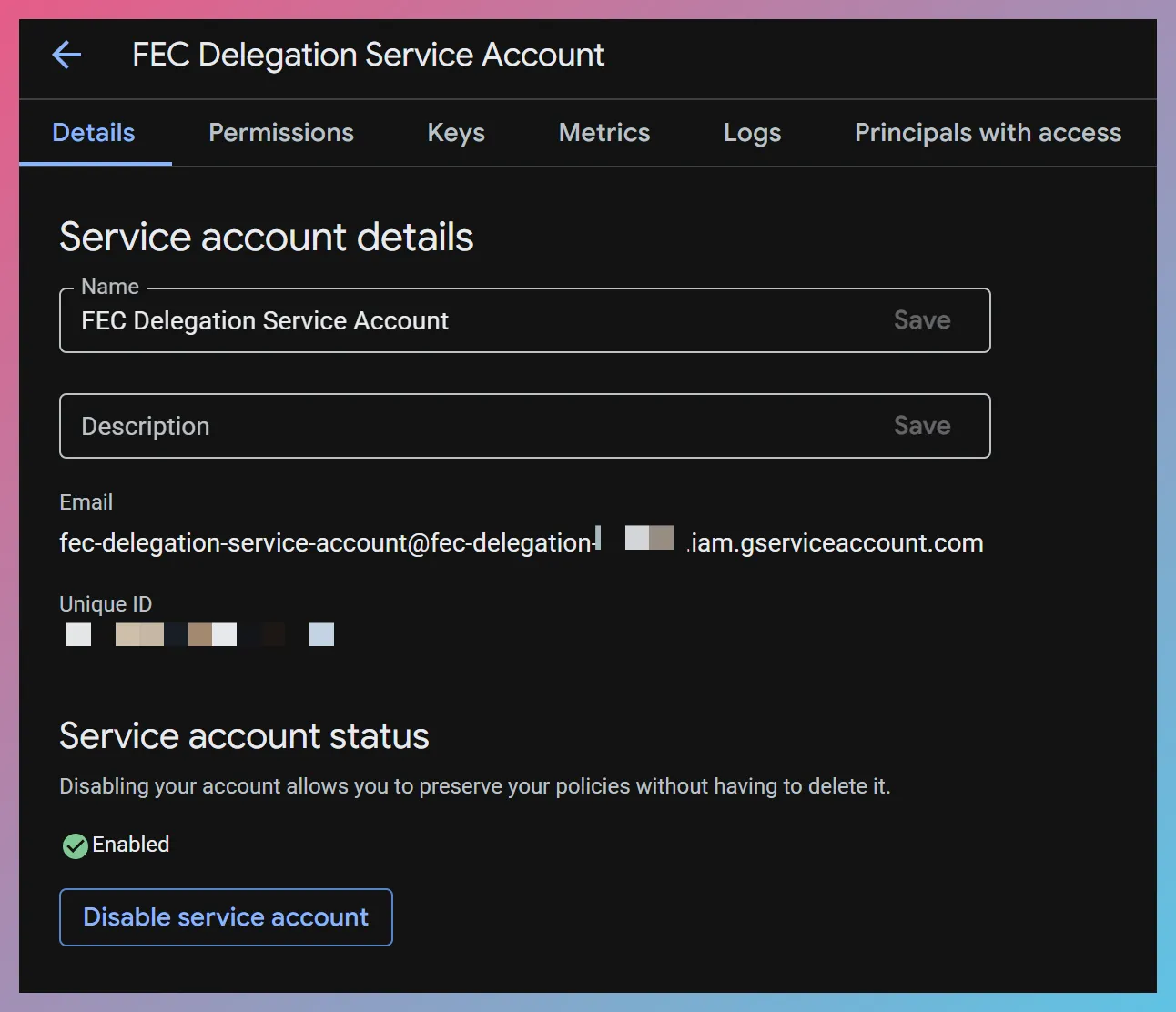
Click on the service account to reveal its details and write down its Unique ID as shown below. Alternatively, you can open the JSON file exported above and find the Unique ID value in the client_id field.
The Unique ID will be used in the Google Admin console in Part II below.
PART II - Delegate Domain-wide Authority to The Service Account
Section titled “PART II - Delegate Domain-wide Authority to The Service Account”Now that we have created the service account and exported its private key, it’s time to delegate domain-wide authority to the service account so that it can be used to access user data within the Google Workspace organization. You can achieve this as follows:
-
Visit the Google Workspace domain’s Admin Console at Google Workspace Admin Console ↗ and log in with a Super Admin account
-
Navigate to Security > Access and data control > API controls
-
Click the MANAGE DOMAIN WIDE DELEGATION button at the bottom of the page — as of this writing, this takes you to https://admin.google.com/ac/owl/domainwidedelegation
-
Click Add new
-
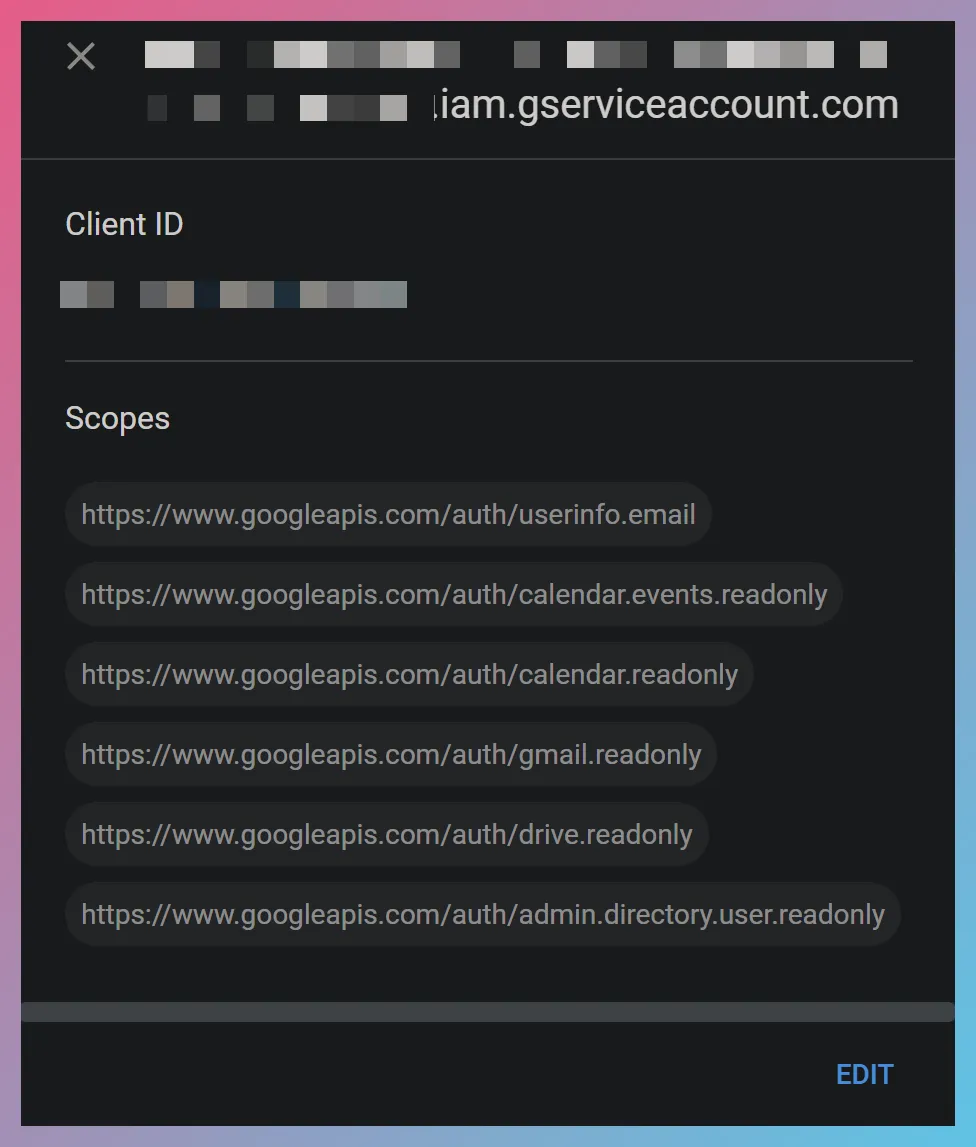
Populate the Client ID textbox with the Unique ID of the service account you created in Part I.
-
Populate the OAuth Scopes textbox with the following string:
email,https://www.googleapis.com/auth/calendar.events.readonly,https://www.googleapis.com/auth/calendar.readonly,https://www.googleapis.com/auth/gmail.readonly,https://www.googleapis.com/auth/drive.readonly,https://www.googleapis.com/auth/admin.directory.user.readonly -
Click the Authorize button
Using The Service Account with FEC
Section titled “Using The Service Account with FEC”Once you have your service account, you can use it with FEC as follows:
-
Start a Google Workspace acquisition as usual.
-
On the connection settings page, check the Use Domain-wide Delegation checkbox and load the .JSON file you exported in Part I above by clicking the
LOAD PRIVATE KEY LOAD PRIVATE KEY button.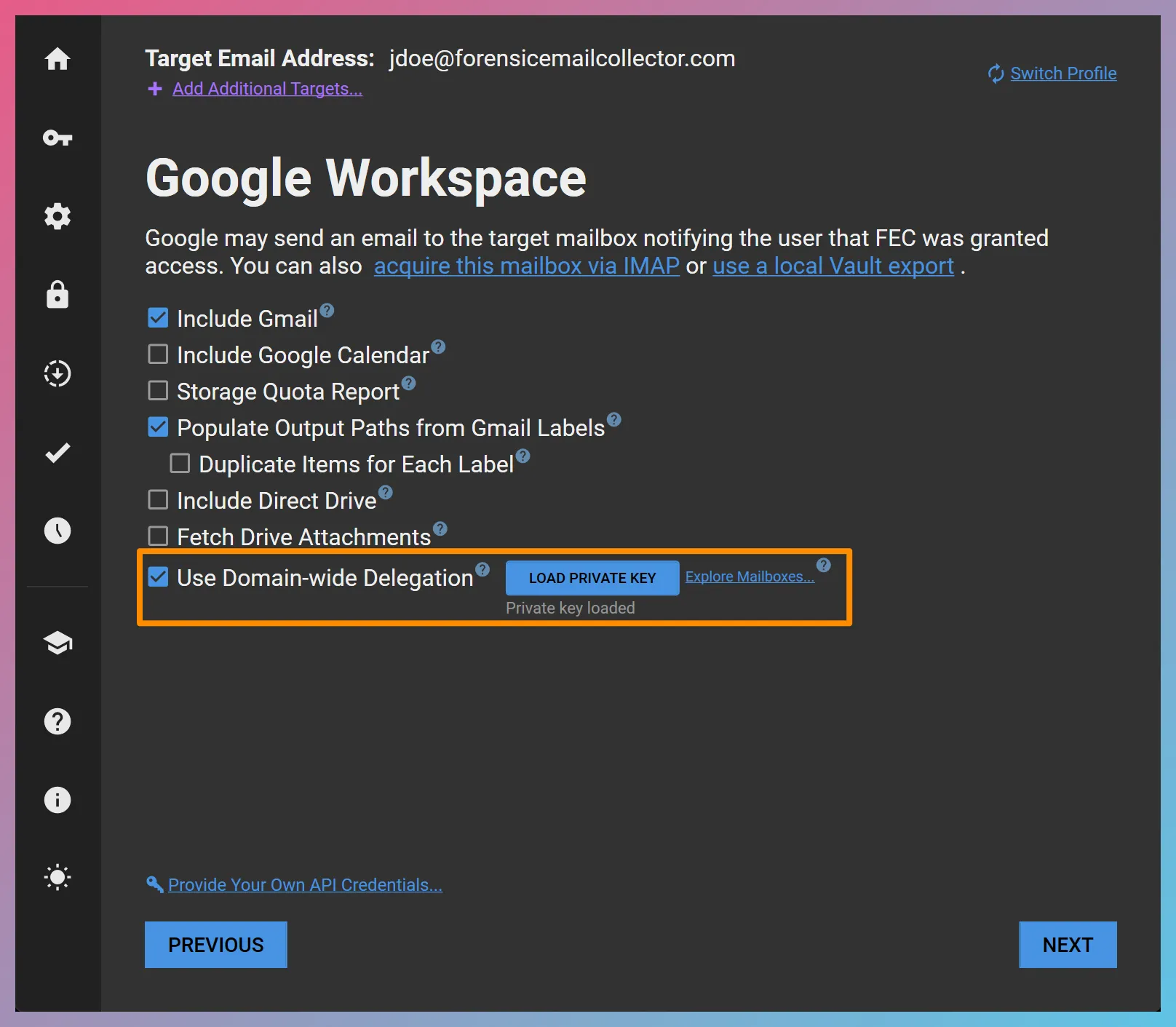
-
Click
NEXT NEXT and proceed with the acquisition.
Removing Domain-wide Authority
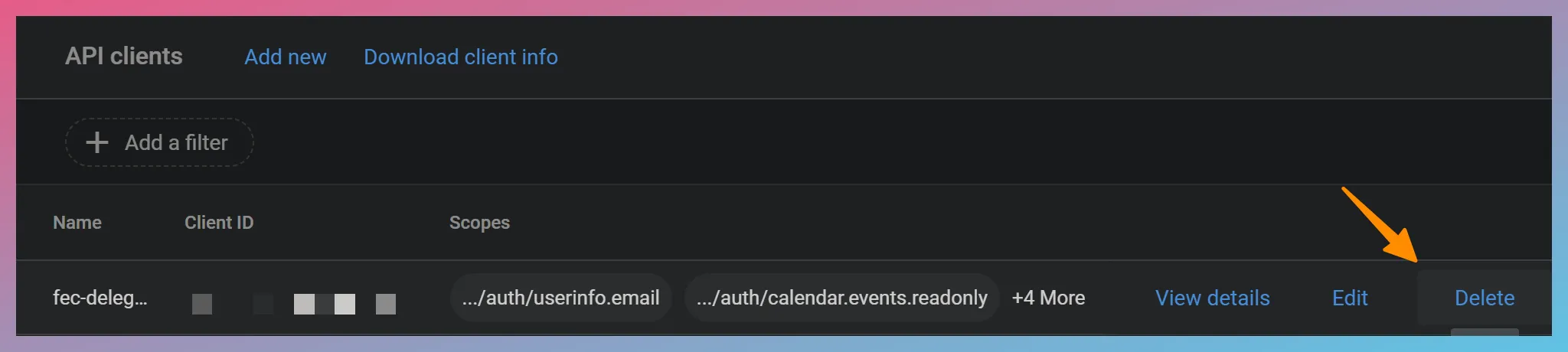
Section titled “Removing Domain-wide Authority”Once the acquisition is complete, go back to the MANAGE DOMAIN WIDE DELEGATION page in Part II and click the
Further Reading
Section titled “Further Reading”The authoritative documentation on domain-wide delegation from Google can be found here: Delegate domain-wide authority to the service account ↗