

Acquiring from Local Google Vault Exports
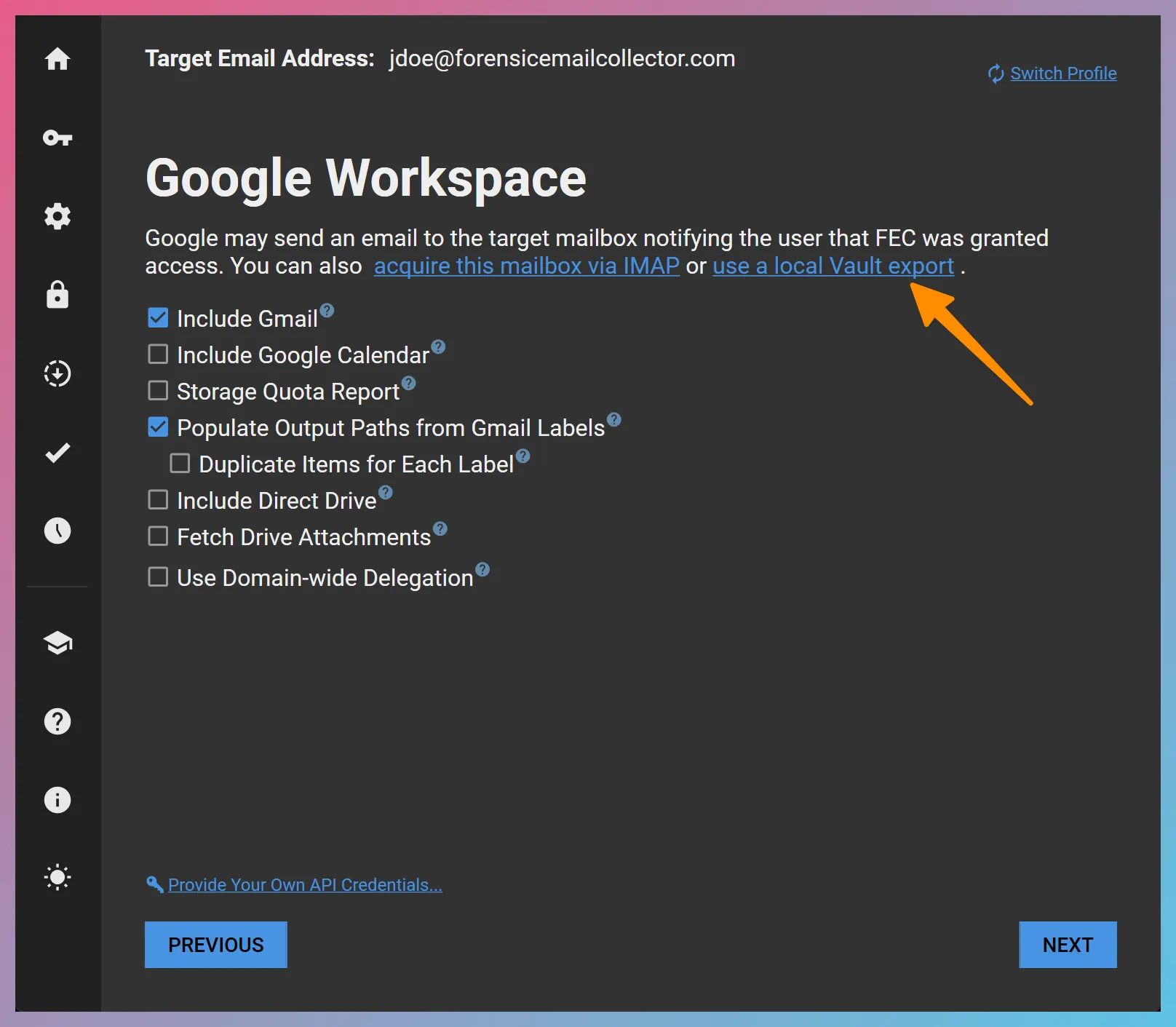
Forensic Email Collector (FEC) can target a local Google Vault export—including hyperlinked Drive attachments—as an acquisition source. You can trigger a Vault export acquisition by starting a Google Workspace acquisition and switching to Vault via the use a local Vault export hyperlink as in the screenshot below.
As is often the case, the Vault export can contain data exported from multiple custodians. FEC handles this automatically and can set up batch acquisitions (see Adding Additional Targets below).
Options
Section titled “Options”The Local Google Vault acquisition workflow provides the following options:
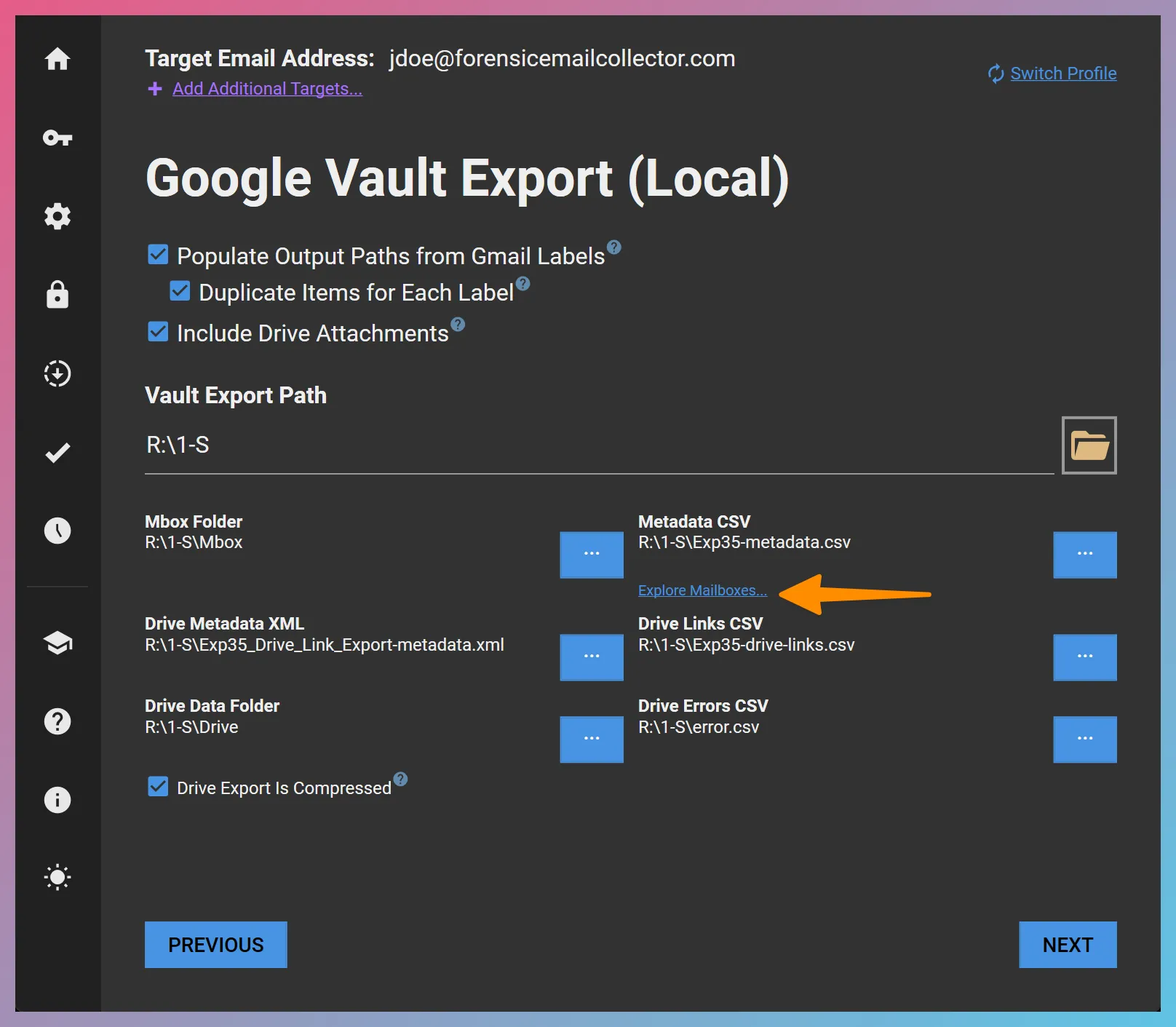
Populate Output Paths from Gmail Labels: This option controls how Gmail labels will affect FEC’s output folder structure. For details, please refer to Gmail Output Options.
Include Drive Attachments: If the Vault export contains hyperlinked Drive attachments, selecting this option would cause FEC to include the hyperlinked Drive files in the acquisition. Similar to a Gmail API acquisition, FEC can package and stage Drive attachments when acquiring from a Vault export.
Populating the Source Files
Section titled “Populating the Source Files”You can start populating the source files by entering the folder where the Vault export is stored as the Vault Export Path. This causes FEC to automatically detect the needed files.
Mbox Folder
Section titled “Mbox Folder”We recommend that you extract the Mbox files inside a folder and provide FEC with its path. If you name the folder Mbox, FEC will pick it up automatically. FEC supports multiple Mbox files for the same custodian in the event that Google Vault splits the Mbox export.
Drive Data Folder
Section titled “Drive Data Folder”Similarly, you can place all files exported from Drive into a folder and provide FEC with its path. If you name the folder Drive, FEC will pick it up automatically.
When it comes to the Drive data folder, you have two options:
- You can extract the ZIPped Drive files into the Drive Data Folder and uncheck the Drive Export Is Compressed option.
- You can place the Drive export ZIPs in their original form (i.e., as ZIP files) inside the Drive Data Folder and check the Drive Export Is Compressed option.
Typically, option #1 should result in better performance.
Adding Additional Targets
Section titled “Adding Additional Targets”If the Vault export contains data for multiple custodians, you can target the desired custodians using the Explore Mailboxes… hyperlink as seen in the screenshot above.
Output Options
Section titled “Output Options”As with regular FEC acquisitions, the Local Vault Export workflow supports EML, MSG, and PST output options including split PSTs and Drive attachment packaging and staging.
Advanced Workflows
Section titled “Advanced Workflows”It is possible to combine the Local Vault Export workflow with other FEC capabilities including:
- Inline Search
- Differential Acquisitions
- S/MIME Decryption
- Containerization
- Trusted Timestamping